
Select Trading Pairs
Step 1: On the left side of the page, hover your cursor on the dropdown beside the trading pair, and you will see all supported Spot trading pairs, along with the Last Traded Price and the 24-hour change percentage of the corresponding trading pair.
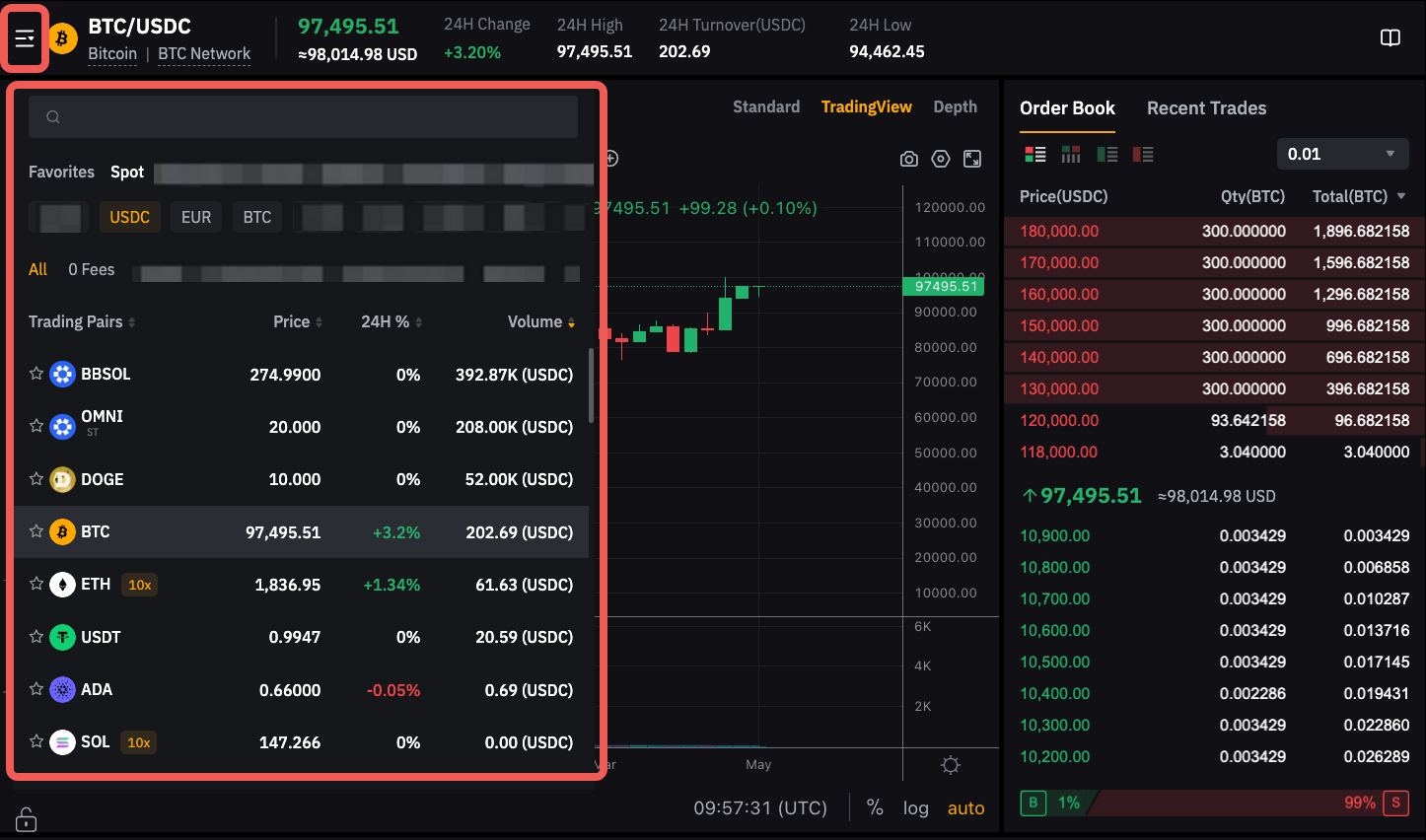
To quickly find the trading pair you desire, please use the search box to directly enter the trading pair you want to view.
Place Your Order
Bybit EU Spot Trading provides you with various order types. To learn more about the differences between each order type, please refer to Types of Orders Available on Bybit EU.
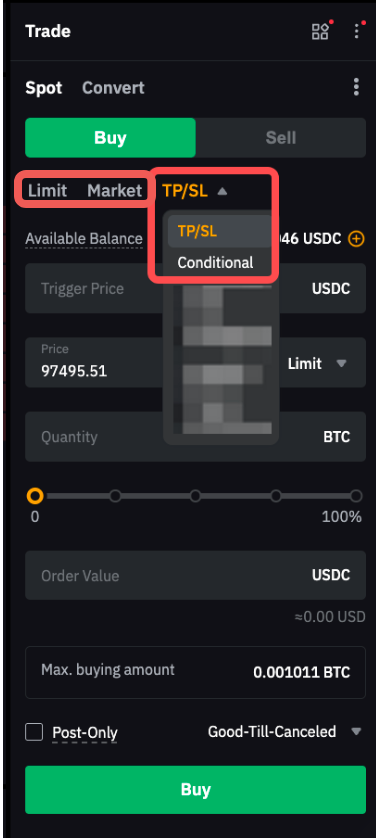
Using Market Order as an illustration, create a Spot Order with the following steps.
Step 1: To perform Spot Trading, please ensure you are currently in the Spot tab. Then, choose to Buy or Sell an asset.
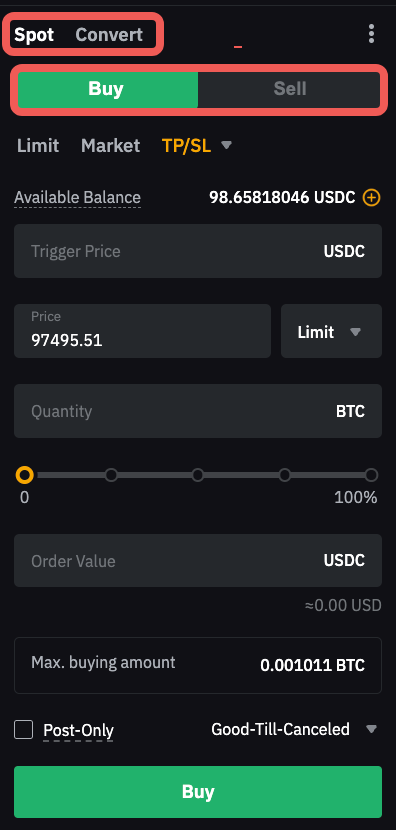
Step 2: Enter your order value or quantity. If you place your order through other order types, such as Limit Order and Conditional Order, you will need to enter your order price or trigger price.
For market buy and sell orders, the default is to place an order by value (market buy) and by quantity (market sell). You can click on Order by Value or Order by Qty to switch your order placement preferences.
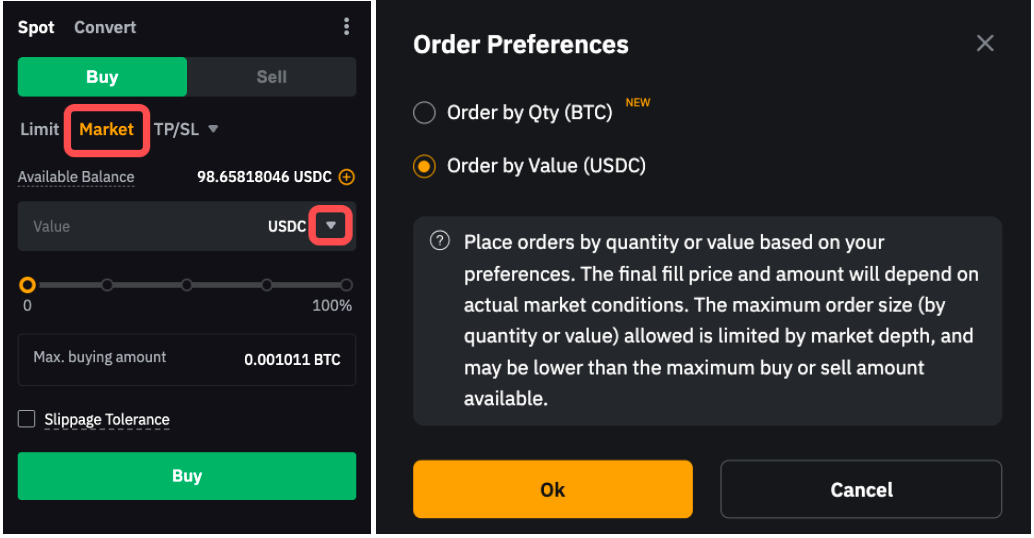
Note: When you select 100% of your available balance to place a market buy or market sell order, there may be a slight difference between the maximum amount or quantity displayed and the value or quantity calculated by our system. This difference acts as a buffer against potential market price changes, ensuring that your order will be placed smoothly even if the price fluctuates slightly.
Step 3: A confirmation window will pop up. Ensure your order details are correct then click on Buy or Sell.
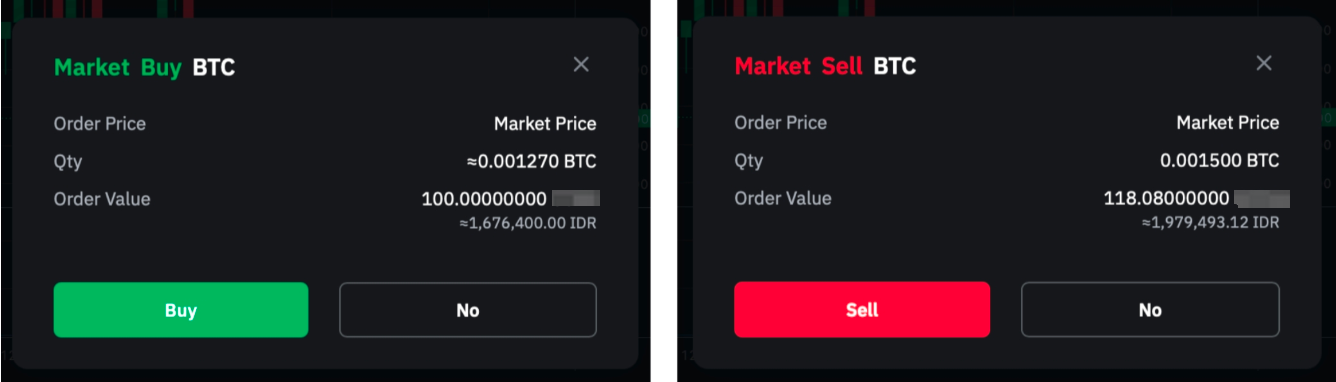
Congratulations! Your order has been successfully placed.
Read More
View Your Order
Current Orders
You can view your current unfilled or untriggered orders on the Open Orders tab. To show all current orders across all trading pairs in all available products, you can check the All Markets box. If you want to limit the selection to Spot Trading pairs, simply select Spot Only in the Instruments menu.

Click on the pencil icon beside your order parameter to edit details such as your order price, trigger price, or order quantity.

Order History or Trade History
You can switch to the Order History or Trade History tab on the Spot Trading page to view up to 50 records from the last six (6) months. Similar to Current Orders, you can check the All Markets box to view order history or trade history from all trading pairs and select Spot Only in the Instruments menu to only see Past Spot orders and trades.
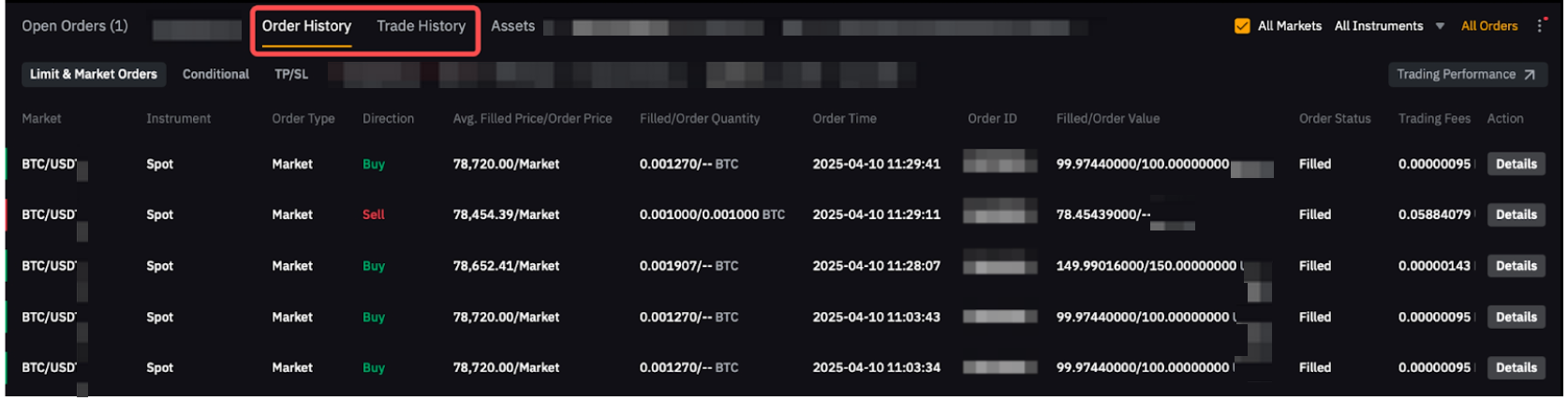
To view records for more than the last six (6) months, please refer to the All Orders page.
Cancel Your Order
To cancel Spot orders, navigate to the Current Orders tab and click on Cancel. Alternatively, you can choose to Cancel All orders from the upper right corner. It's important to note that if you have selected the All Markets option, clicking on Cancel All will cancel orders from all trading pairs.
