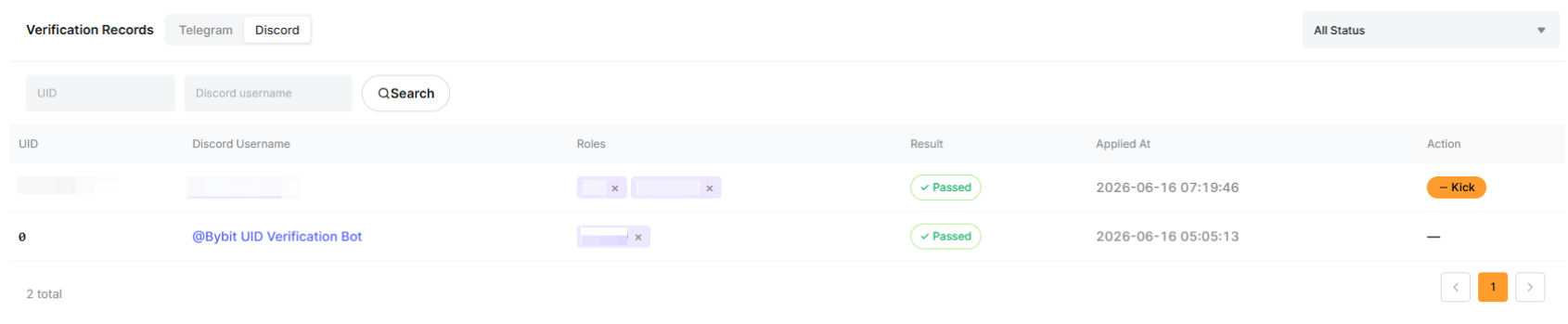
The Discord Bot is designed by Bybit EU to help KOLs create and manage their Discord servers. The bot aims to:
- Automate user approvals, rejection, and removals using a specified filter or criteria.
- Allow KOLs to customize bot responses to users, and encourage them to register using their affiliate links, if needed.
- Give KOLs the ability to “clean” their community by removing inactive users over a specific period of time.
How to Set Up the Bybit EU Bot in Your Discord Server
Step 1: Open your Discord App and add the Bybit EU UID Verification bot to your server via this link and click on Continue. You will need to have created your Discord Server and select it before you can proceed.
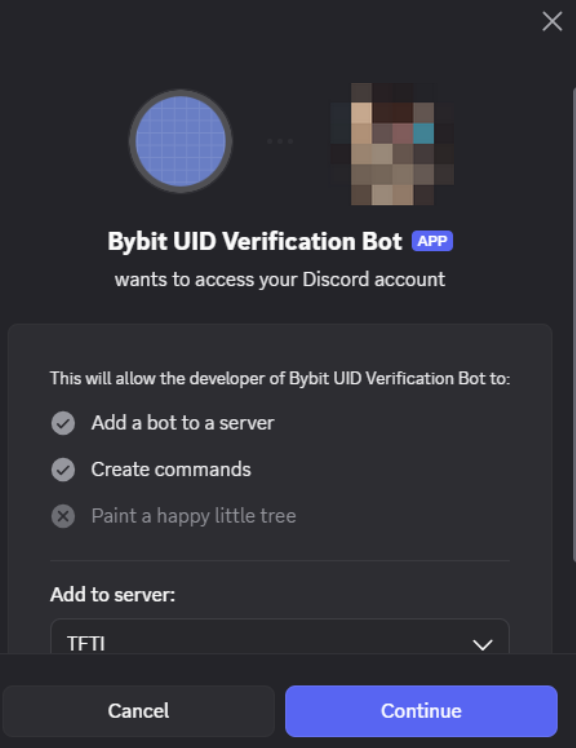
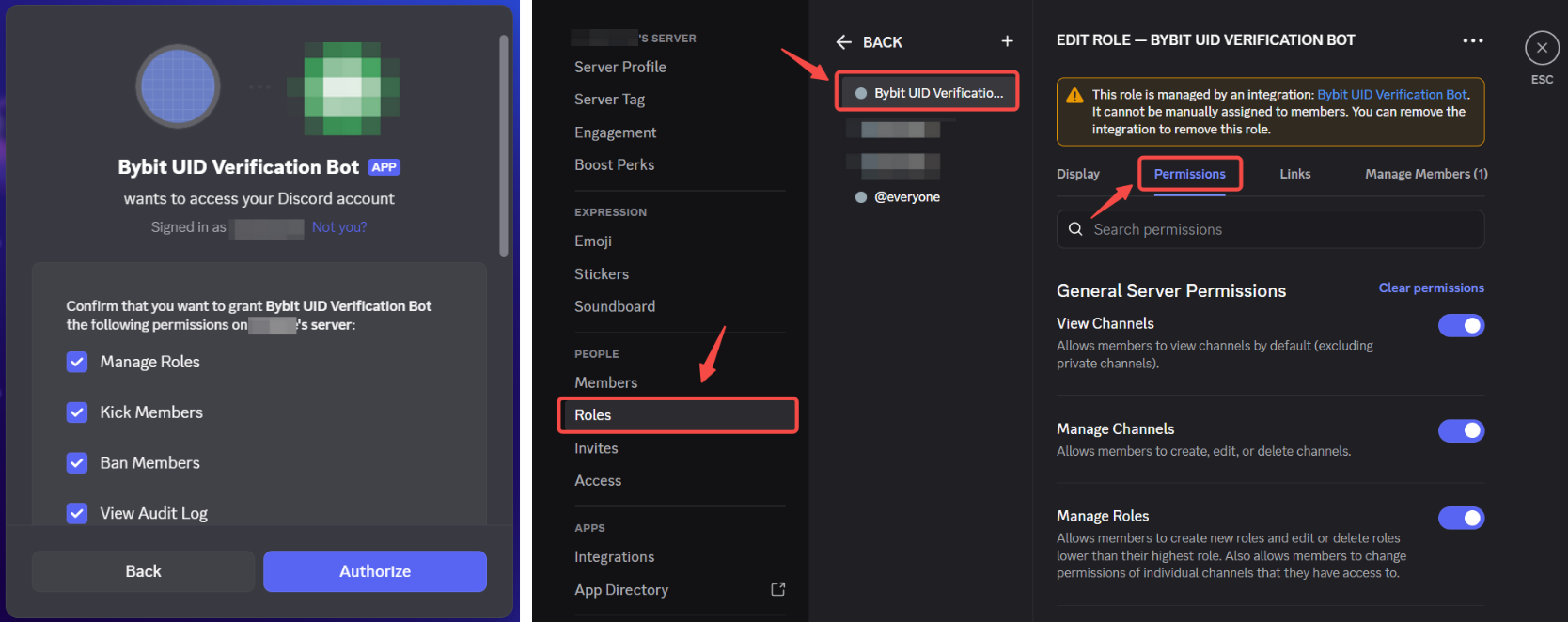
Step 2: Ensure that you have granted the highest access to the Bybit EU UID Verification bot by:
- Ticking all the boxes before clicking on Authorize.
- Checking that the role assigned to the Bybit EU UID Verification Bot in your Discord server has all the permissions activated.
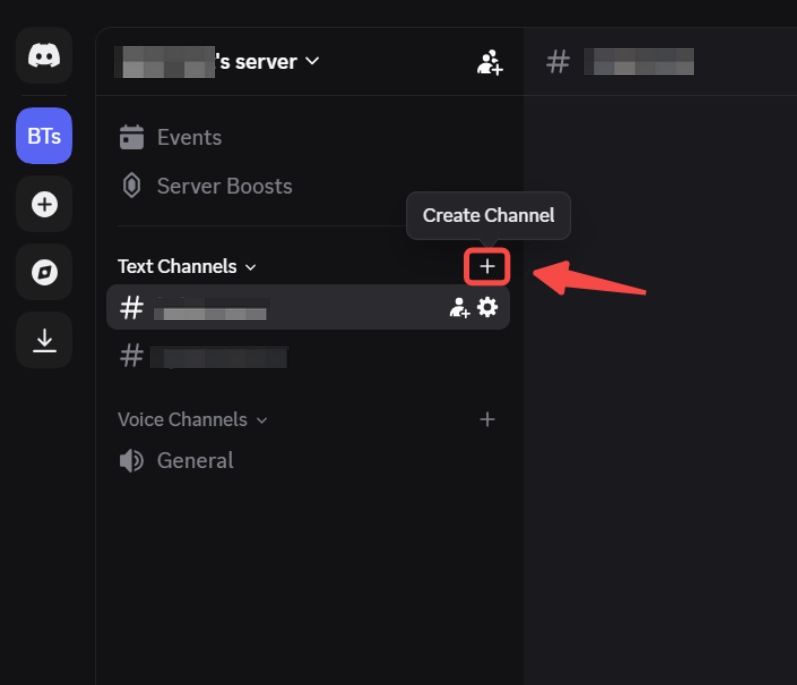
Step 3: Set up the needed Discord channels by clicking on + next to Text Channels and adding the Bot as a member where needed.
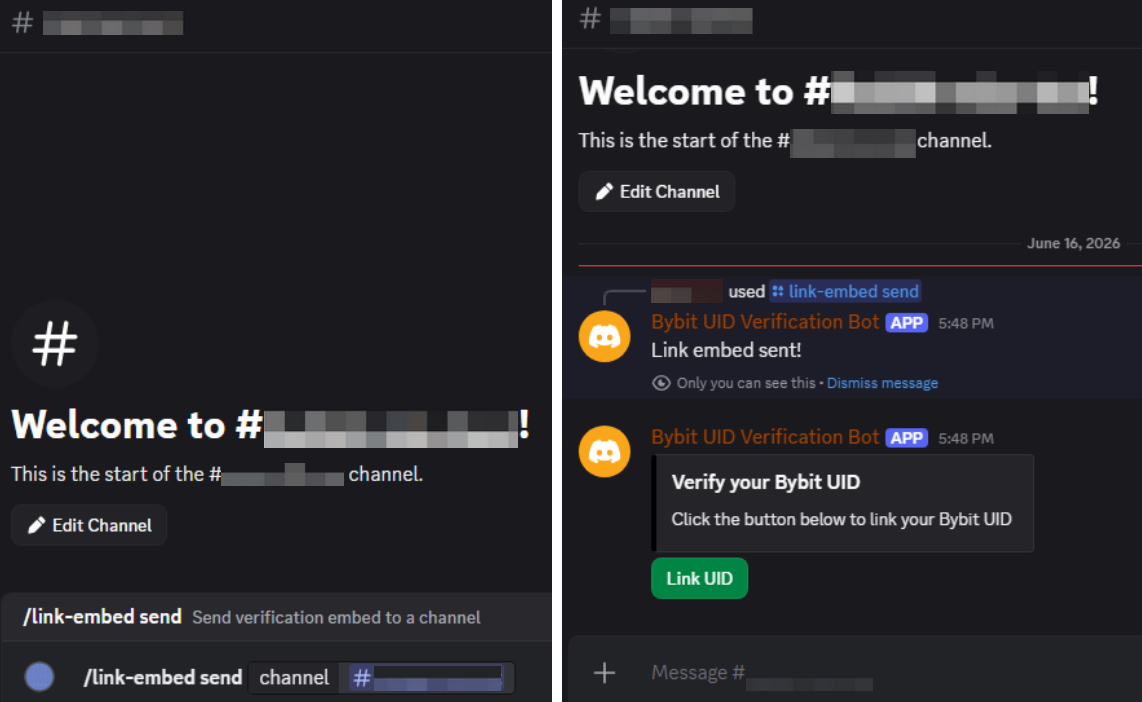
Note: To facilitate your Discord Bot setup, you can use /link-embed send in any text channel to link the bot to your desired channel. Once linked, the bot can check each user’s UID to see if they meet your requirements.
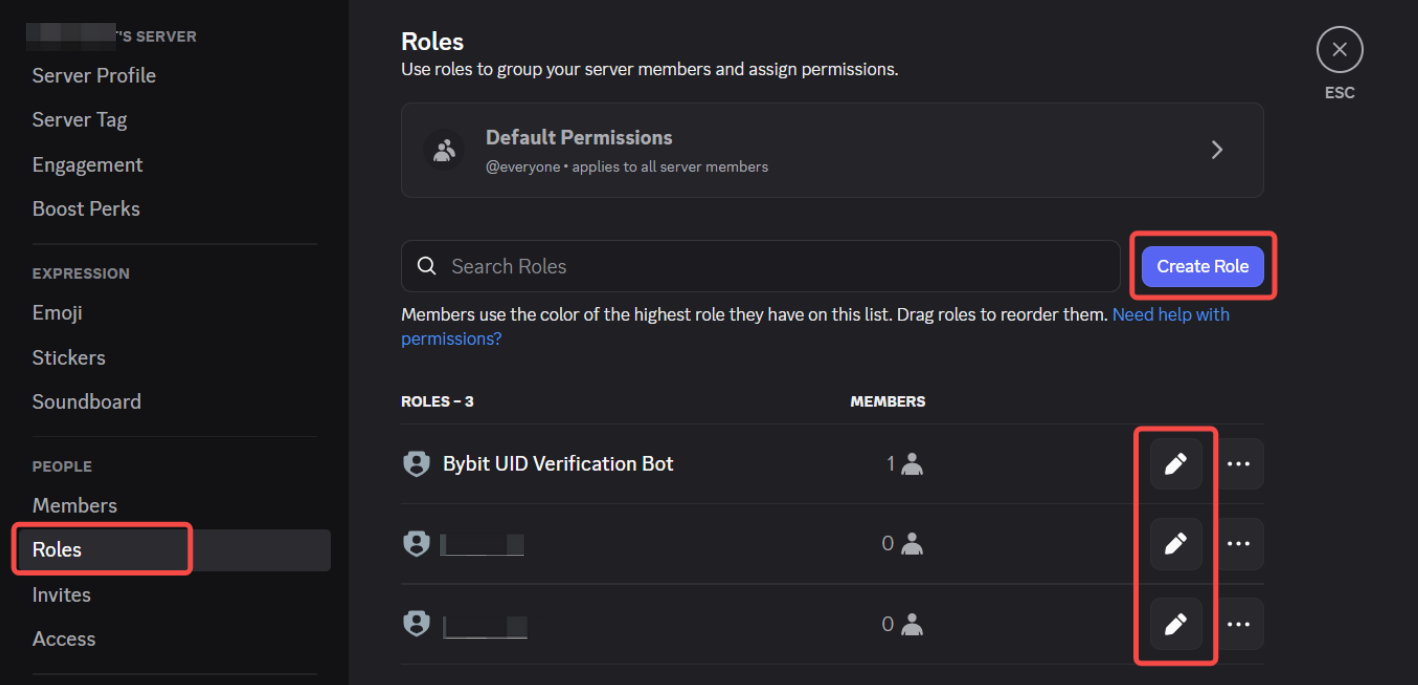
Step 4: Make sure to set up the roles your approved users will have for each channel by going to your server’s settings and creating/updating your roles in the Roles section.
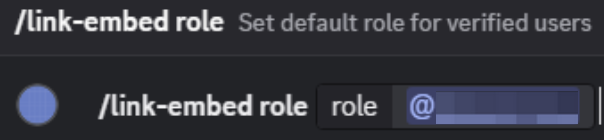
Note: To facilitate your Discord Bot setup, you can also use /link-embed role in any text channel to automatically set the default role of the approved users.
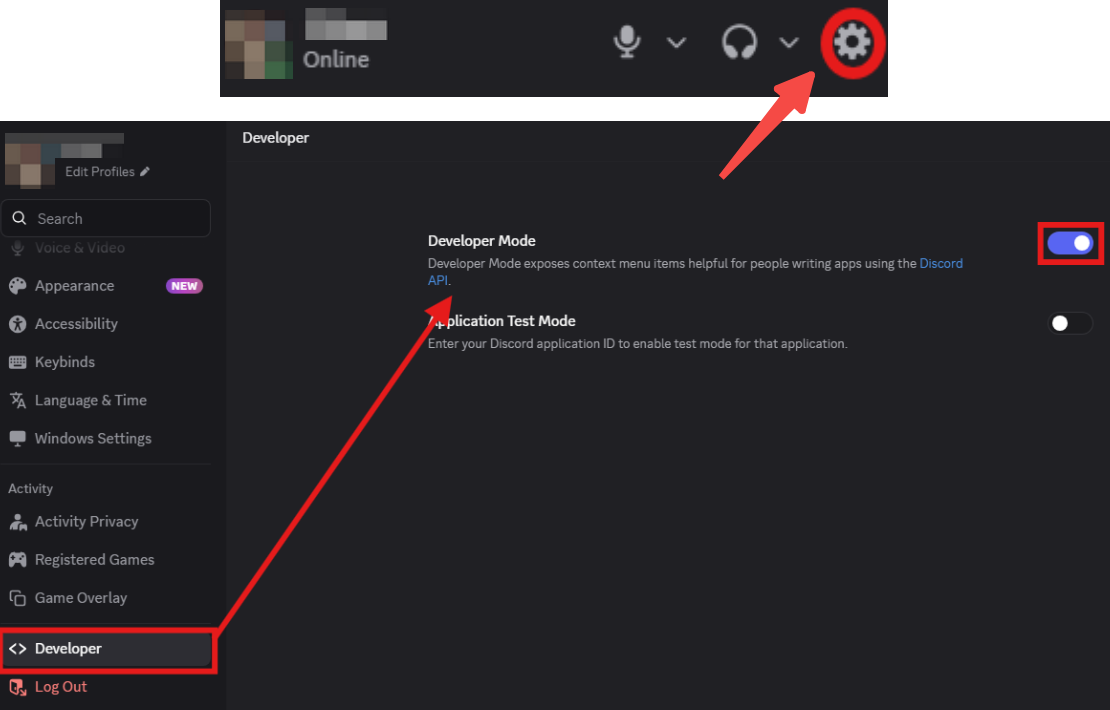
Step 5: Set up your group bot settings by enabling the develop mode. To do so, go to your account settings, click on Developer and toggle on the Developer Mode option.
You have successfully set up your group bot on Discord!
How to Manage your Discord Bot on Bybit EU
Go to the Bybit EU Affiliate Platform and log in to your affiliate dashboard. On the left-hand side navigation, click on Promotion Tools → Group Bot.
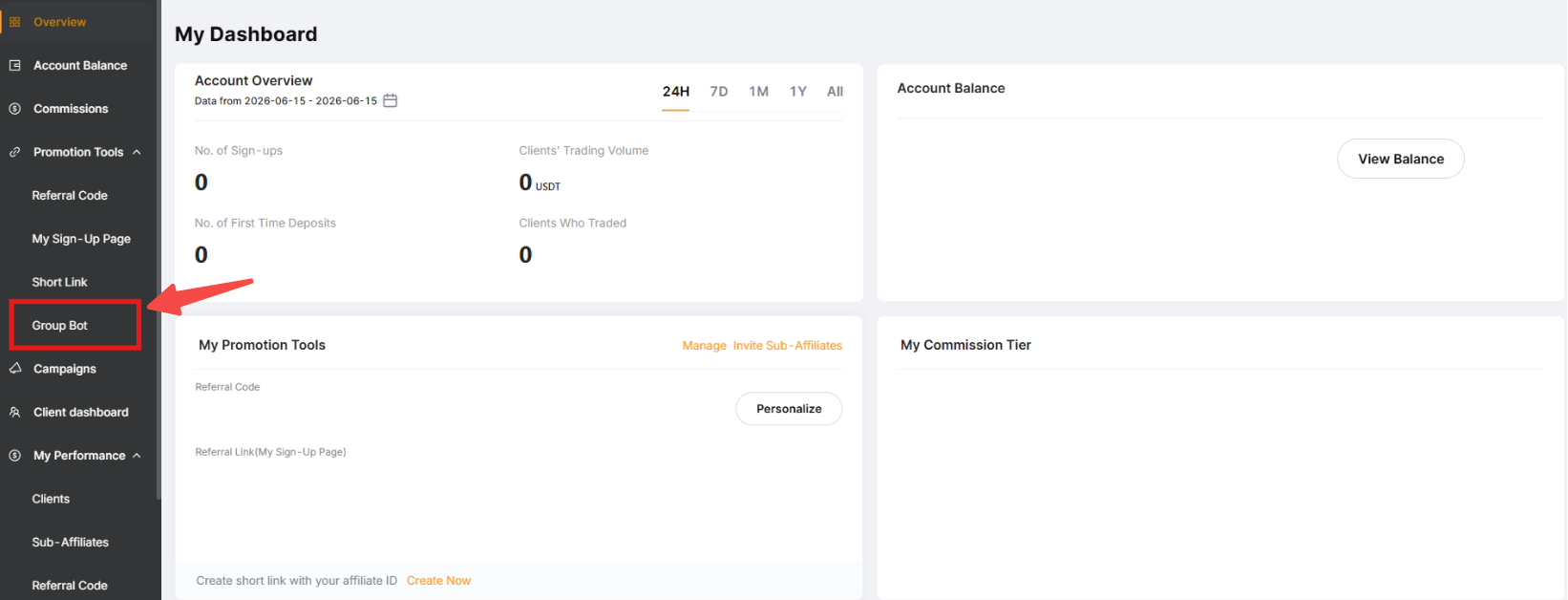
When the Discord bot creation pops up, you will be able to fill in the appropriate details:
Basic Settings
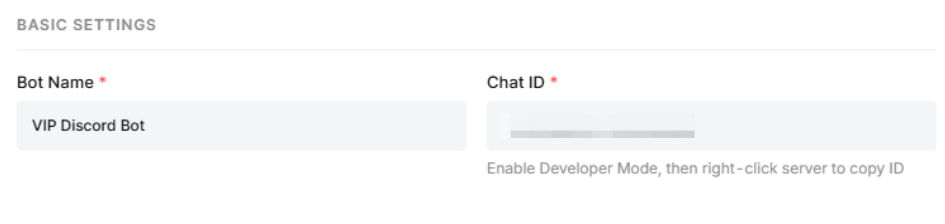
Enter your Discord Bot information:
1. Bot Name: The username used for the bot.
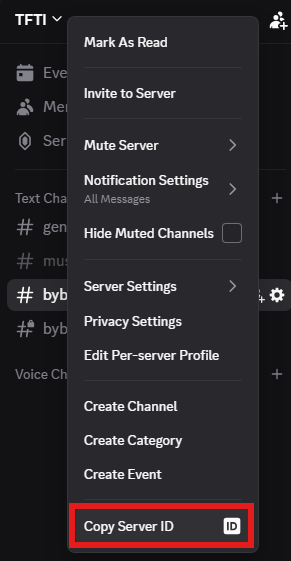
2. Chat ID: The chat ID of your Discord server. To retrieve it, open your Discord server and click on its name to show the menu. Click on Copy Server ID.
Verification User Scope
Select the scope of users that will be able to access your group:
- Users registered directly under me: direct users under your affiliate account.
- All users under my Sub-Affiliates: users under you and your sub-affiliates.

Verification Rules and Periodic Cleanup
Specify the criterias your users need to achieve so they can get access to your group.
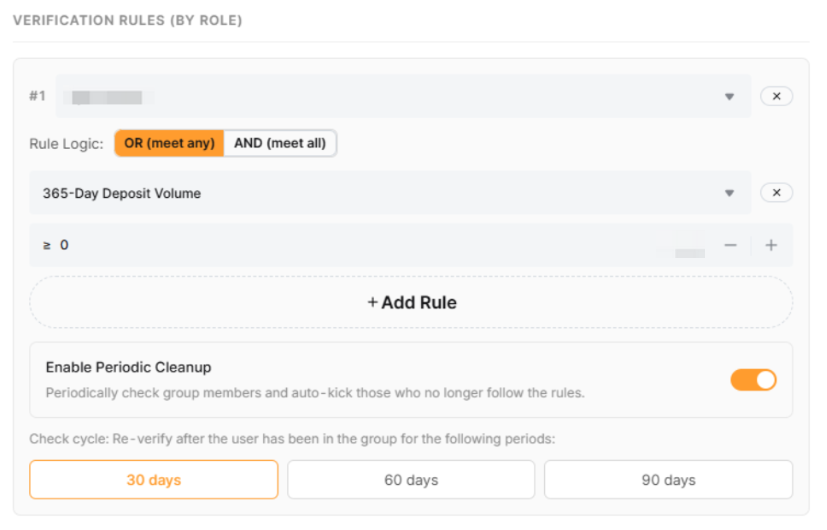
You can set up criterias based on:
- 30-day/365-day Trading Volume: Trading Volume your users should achieve within 30/365 days (in USDC).
- 30-day/365-day Deposit Volume: Volume your users should deposit within 30/365 days (in USDC).
- Identity Verification Level: KYC Level that your users should have.
- VIP Level: VIP Level that your users should have.
- Current Balance Tier: The current balance your users should have.
Notes:
— All values are calculated in equivalence to USDC.
— Please be mindful of the Rule Logic when setting up multiple rules.
Below the Verification Rules section, you will see the option Enable Periodic Cleanup, which allows your bot to check your group at every given period of time, and kick members that do not meet the criteria specified in the Verification Rules. Once activated, select the cycle period between 30-60-90 days.
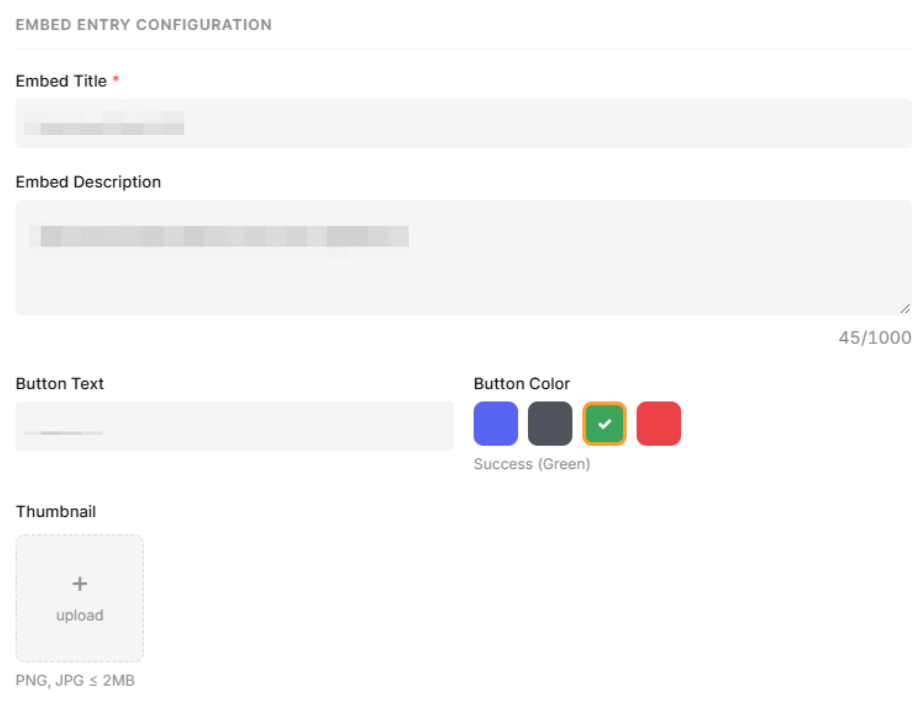
Embed Entry Configuration
Customize how your Bybit EU button will look like on Discord.
Message Settings
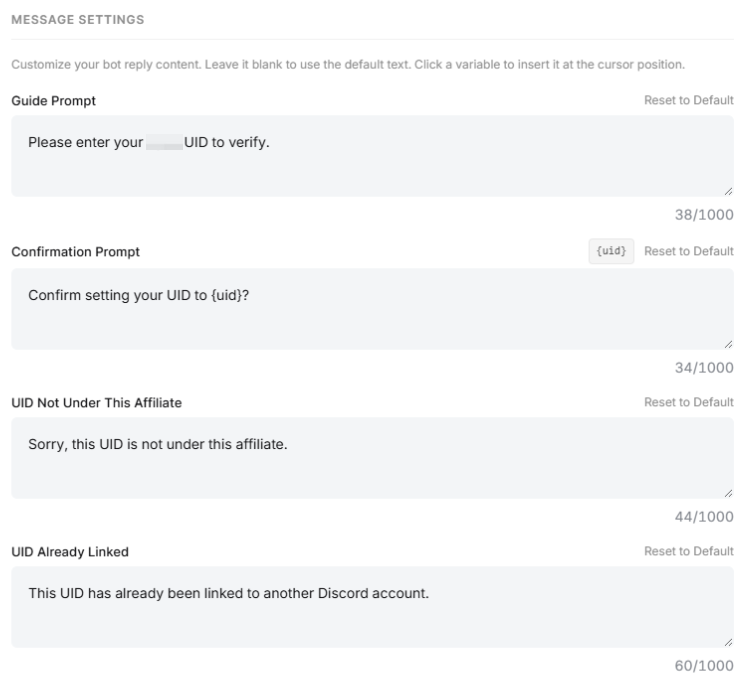
Set up customized prompt replies for your bot to send to your users.
Bot Analytics
After creating the bot, you will see the analytics of your bot’s progress.