For Bybit Card Management
View Bybit Card Details
Freeze/Unfreeze Bybit Card
Unblock CVV
Enable or Disable Online Transactions and ATM Withdrawals
Reset Bybit Card PIN
Replace Bybit Card
Terminate Bybit Card
Add Apple Pay/Google Pay/Samsung Pay
Customize Design on Bybit Card
For Bybit Card Management
How to view Bybit Card Details?
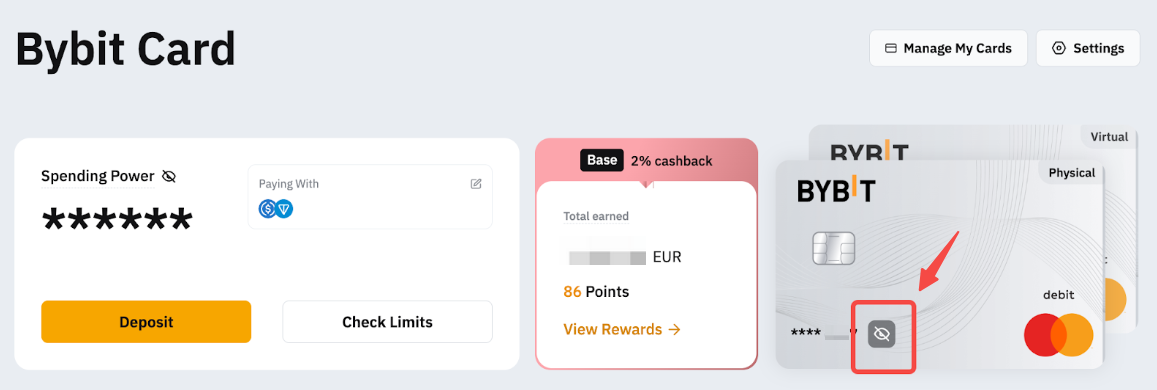
To view your Bybit Card details, you may go to My Bybit Card and click on View Number. If you have more than one Bybit Card, simply click on the card display to switch cards.
How to freeze/unfreeze my Bybit Card?
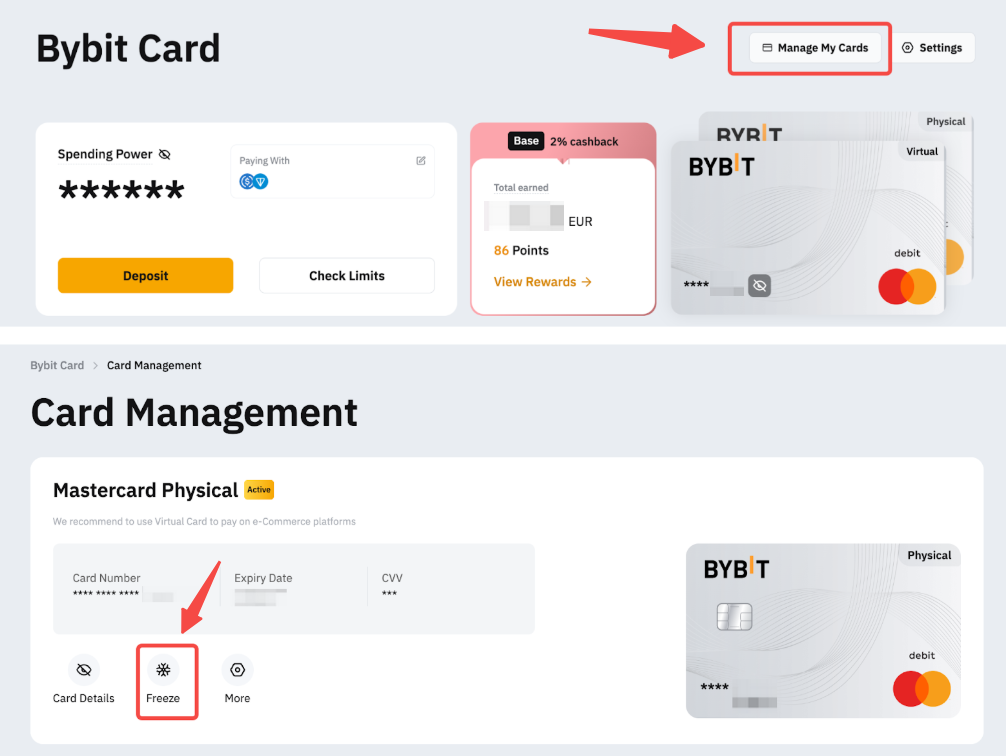
Please go to the Card Management page. Click on Freeze and Confirm to temporarily disable your Bybit Card when you are not using it. Freezing your card will temporarily suspend all transactions to protect your account from unauthorized activities.
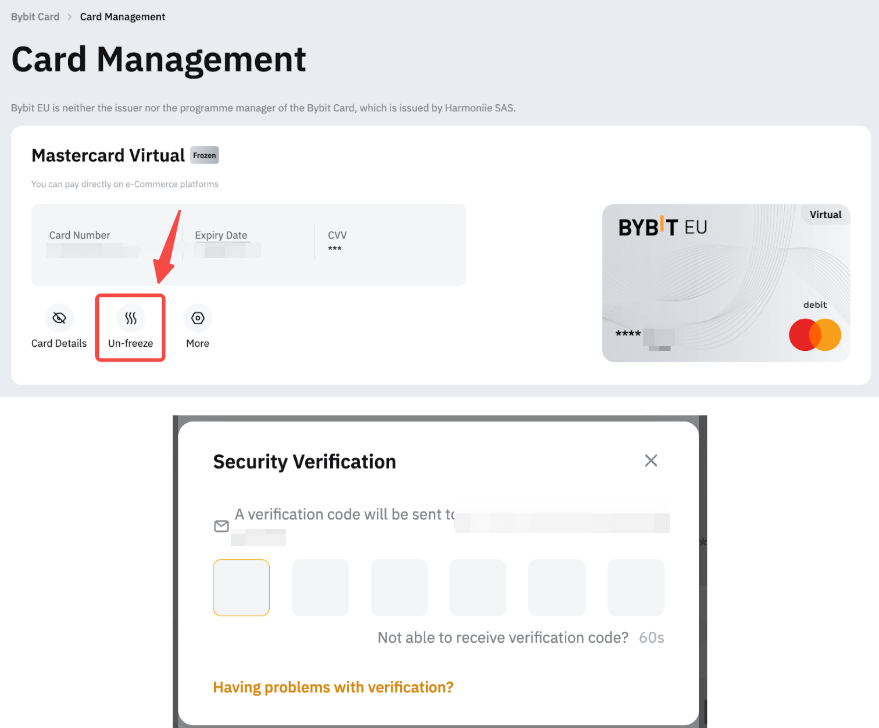
To reactivate your Bybit Card, click on Unfreeze and complete the security verification to confirm the action.
How to unblock CVV?
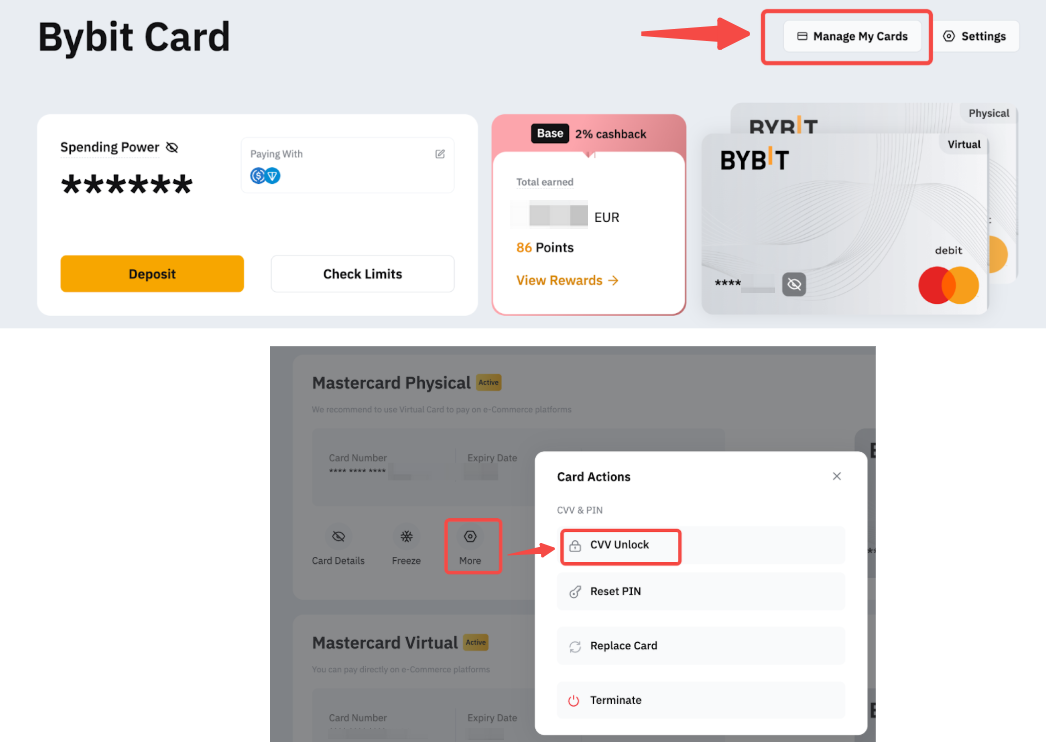
If you have exceeded the number of tries to enter your CVV, your card will be locked. You may unblock your CVV on the Card Management page, click on CVV Unblock and verify with security verification.
How to Enable or Disable Online Transactions and ATM Withdrawals?
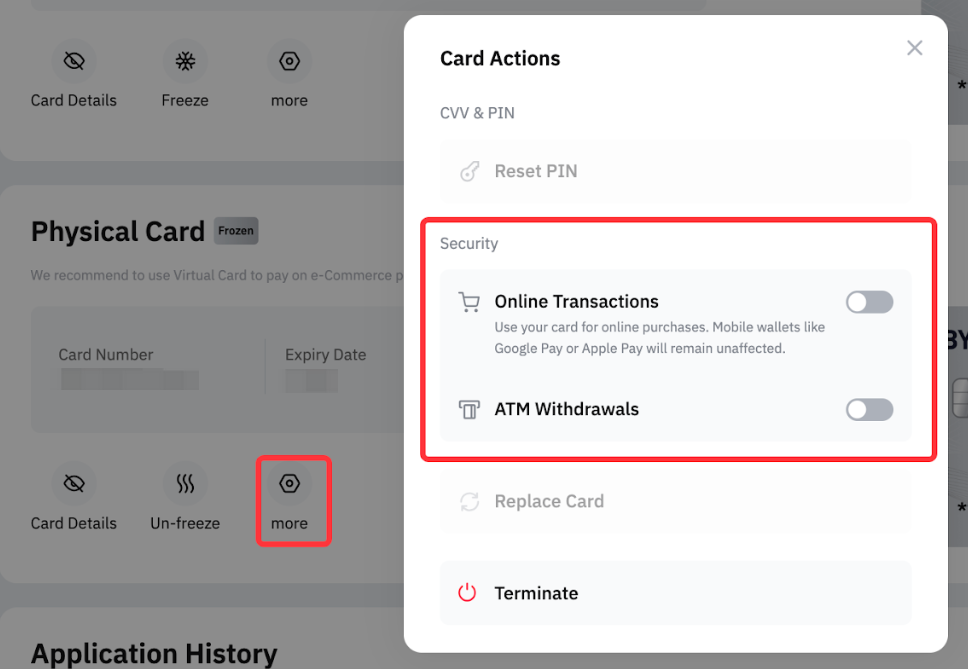
Users can manage online transactions and ATM withdrawals through More settings.
By disabling these options, transactions are blocked, providing an added layer of security for the card. For security reasons, 2FA verification is required when enabling these options, while disabling them does not require 2FA verification.
How to reset my Bybit Card PIN?
It is important to note that after resetting your PIN, you have to complete a transaction on an ATM first (a balance inquiry will do) with the newly changed PIN. Then, go to any retail merchant to complete a chip and PIN transaction with the new PIN. Subsequently, you can use Bybit Card for a contactless or new PIN.
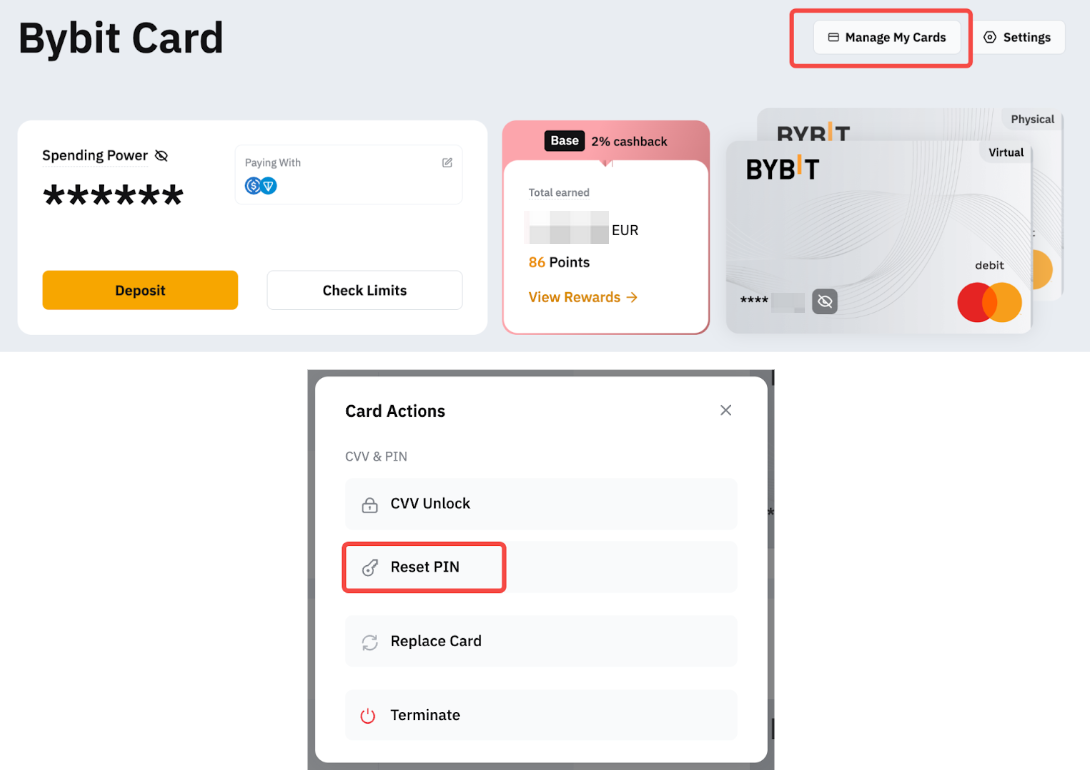
Please head to the Card Management page. Click on Reset PIN and complete security verification.
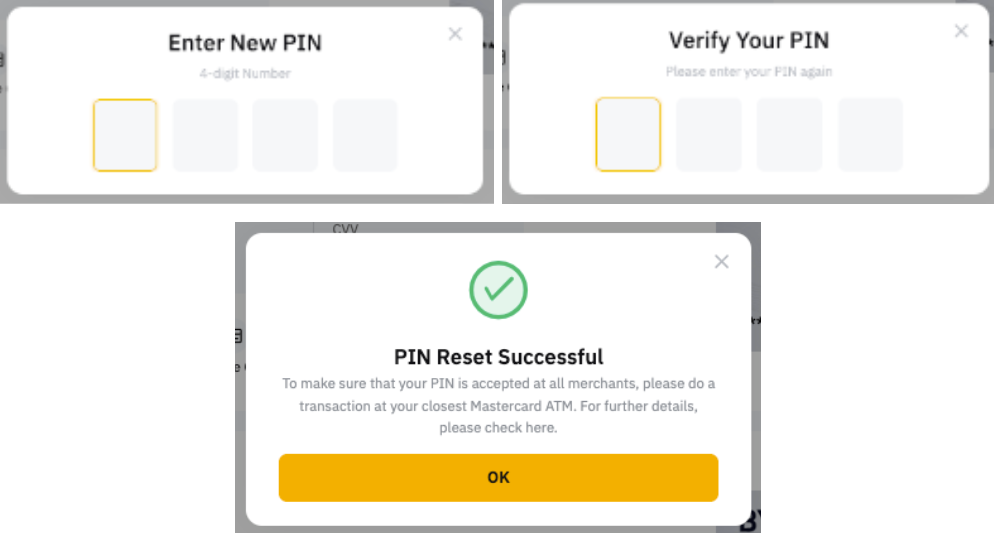
Next, enter a new PIN number and complete the second verification using your new PIN.
Notes:
— When resetting your PIN, users will be required to input a 4-digit code.
— Each card will have its own PIN which means that changing the PIN of the physical card will not change the PIN of the virtual card. To reset the PIN on your physical card, simply follow the instructions above.
How to replace my Bybit Physical Card?
Please head to the Card Management page and click on Replace Card.
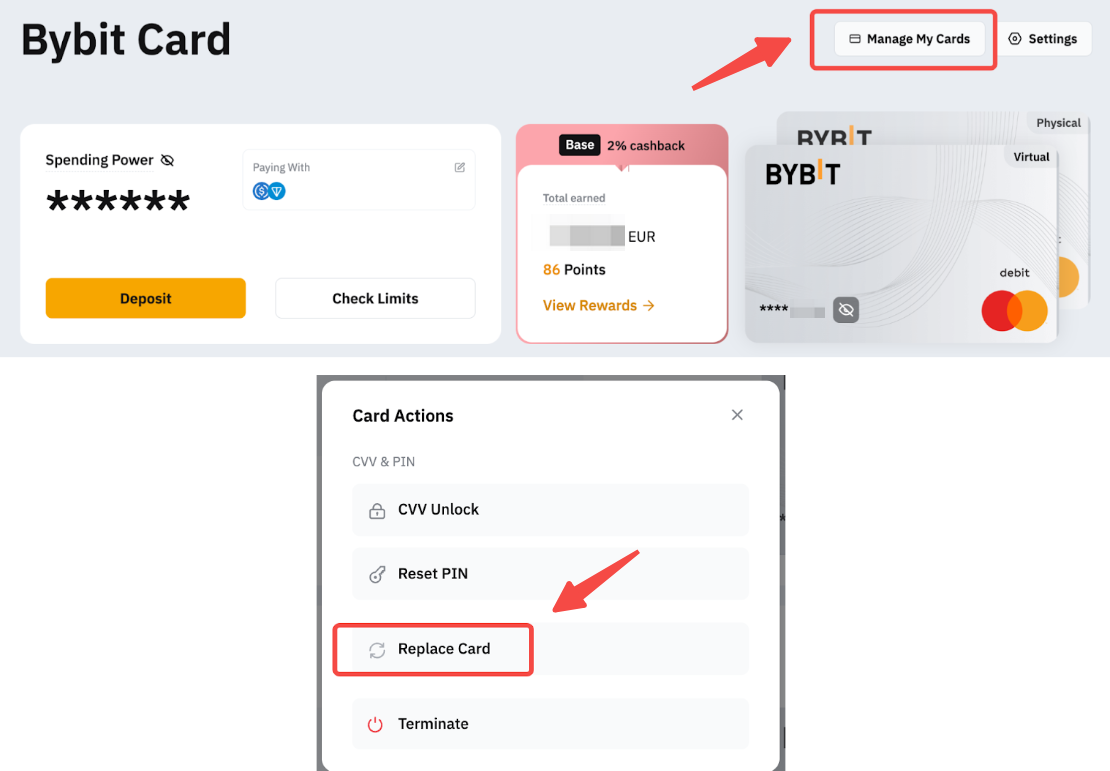
Then, select the reason you would like to replace your Physical Card:
- It’s lost or compromised (fraud, stolen, etc.)
Select this option when your Bybit Card has been compromised. Upon confirming the option, your physical Card will be terminated and you can apply for a new card.
- It’s damaged or doesn’t work
Select this option when your Physical Card is still in your possession but the card is broken or damaged. Upon confirming the option, we will issue a new Physical Card to your shipping address. After you receive and activate your new card, the old card will automatically be terminated.
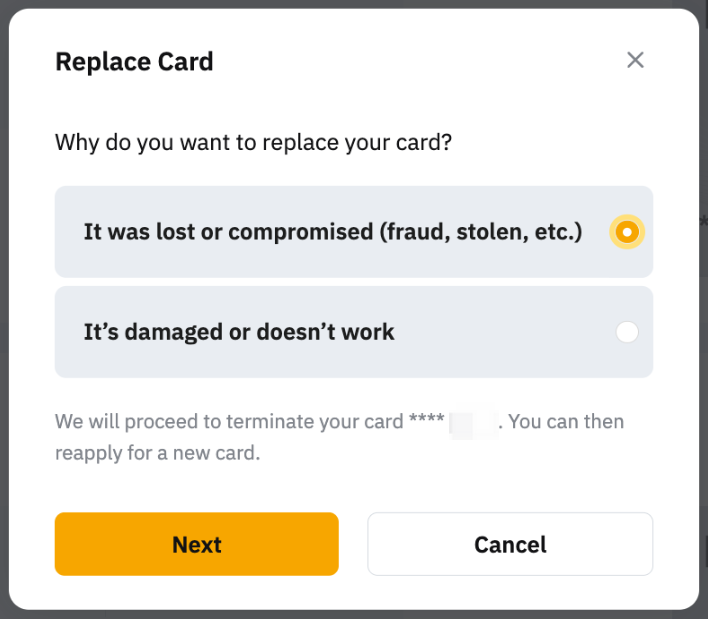
How to terminate my Bybit Card?
Please head to the Card Management page. Click on the Terminate button. Then, complete the security verification and click on Terminate if you wish to proceed.
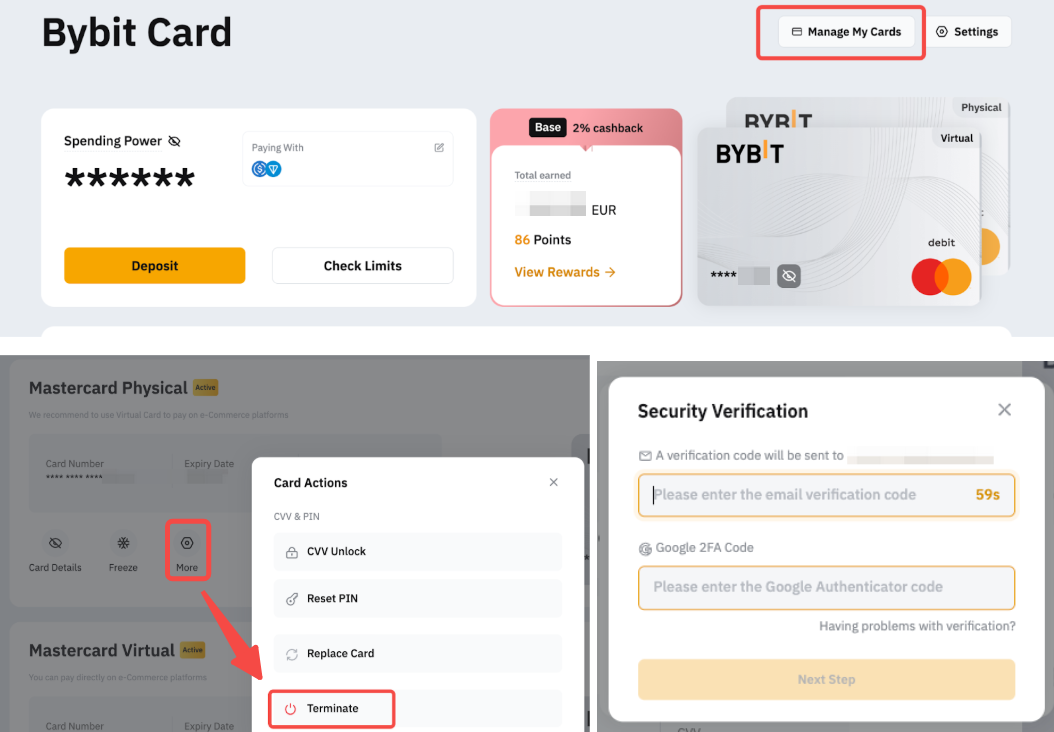
How to add my Bybit Card to Apple Pay, Google Pay or Samsung Pay?
Adding your Bybit Card to digital wallets like Apple Pay, Google Pay and Samsung Pay is supported for Bybit Card. Please note that adding your card to Apple Pay, Google Pay and Samsung Pay is only supported via Apple Pay, Google Pay and Samsung Pay.
Google Pay
You can add your card like any other card when using Google Pay or by going to your Google Pay app.
Notes:
— Google Pay on iOS is not supported.
— Google Pay cannot be added using the website.
— Google Pay is not available to users from Switzerland, Estonia and Norway.
Apple Pay
Adding your Bybit Card to Apple Pay is now available on iOS and Apple Watch. Before doing so, please ensure that you are
(i) using Bybit Card,
(ii) in Apple Pay's supported country or region,
(iii) using the latest version of iOS, watchOS, macOS, or visionOS, and
(iv) confirm that you have Face ID, Touch ID, Optic ID, or a passcode set on your device.
To add Bybit Card to Apple Pay, simply find Wallet/Watch on your iOS device and click on the add card button. Then, follow the instructions to add your Bybit Card details and complete the security verification.
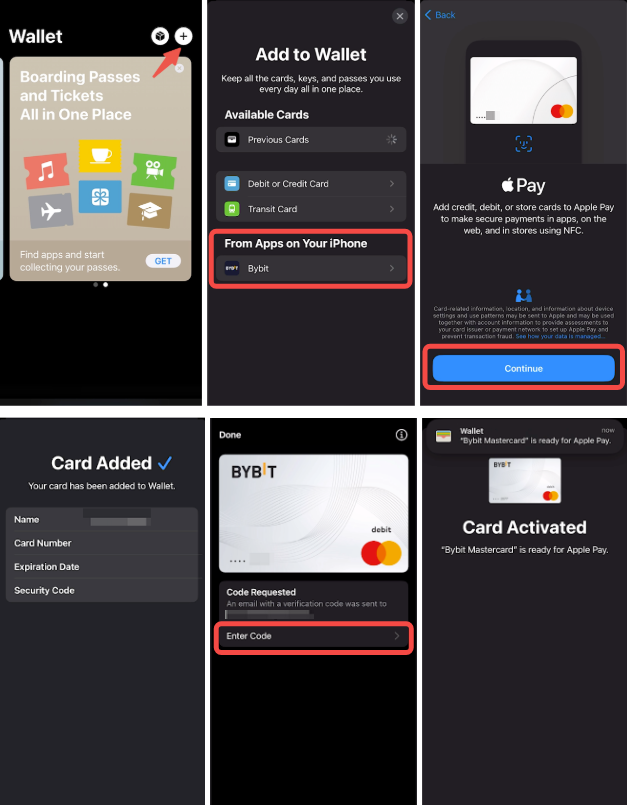
Notes:
— Apple Pay on Android is not supported.
— Apple Pay cannot be added using the website.
— You can see the transaction history in Apple Wallet and Bybit Card transaction history.
— The tick mark with Done means that the Apple device has passed the payment details to the terminal. Payment declined could be due to a decline by Bybit EU or Mastercard.
— All cards in the device's Apple Wallet will be suspended when the device is reported lost/stolen. The same card on another device will not be affected.
How to Customize Design on Bybit Card?
Please head to the Card Management page, click on More and select Card Design. You will be directed to a gallery of available virtual card designs. Browse through the selection, select your preferred design and click on Set.
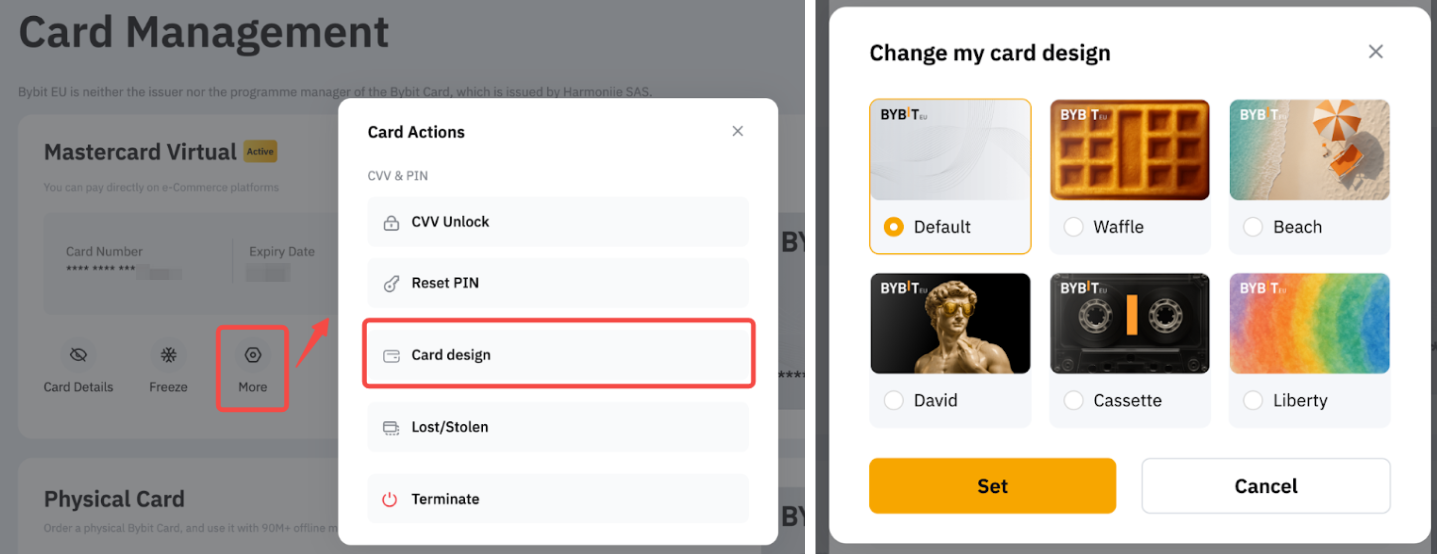
The selected design will be instantly applied to your virtual card, and it will also be reflected in your Apple Pay or Google Pay wallet.
For Bybit Card Settings
How to reset the Bybit Card security questions?
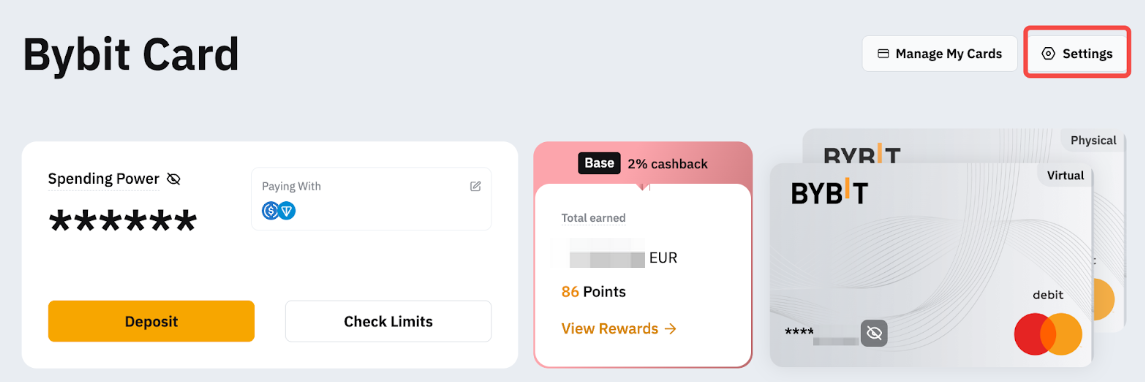
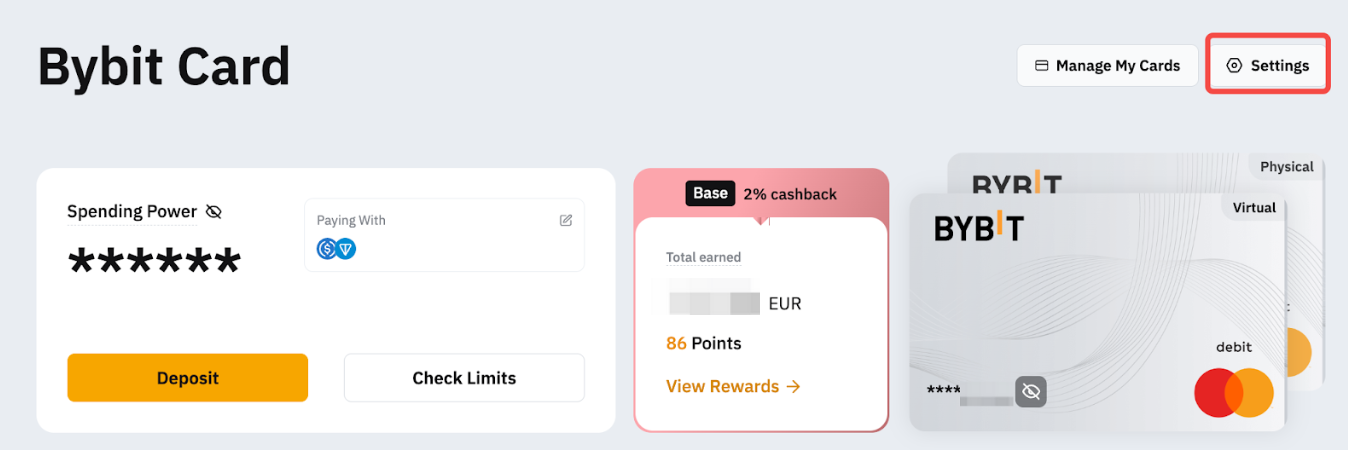
Step 1: Go to My Bybit Card and click on Settings.
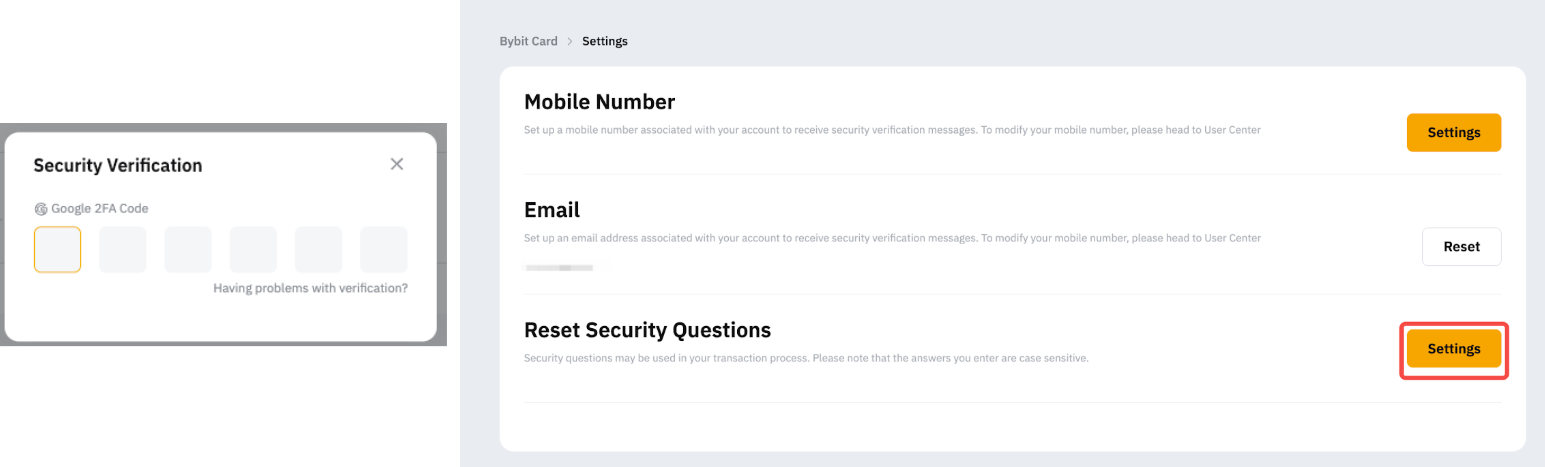
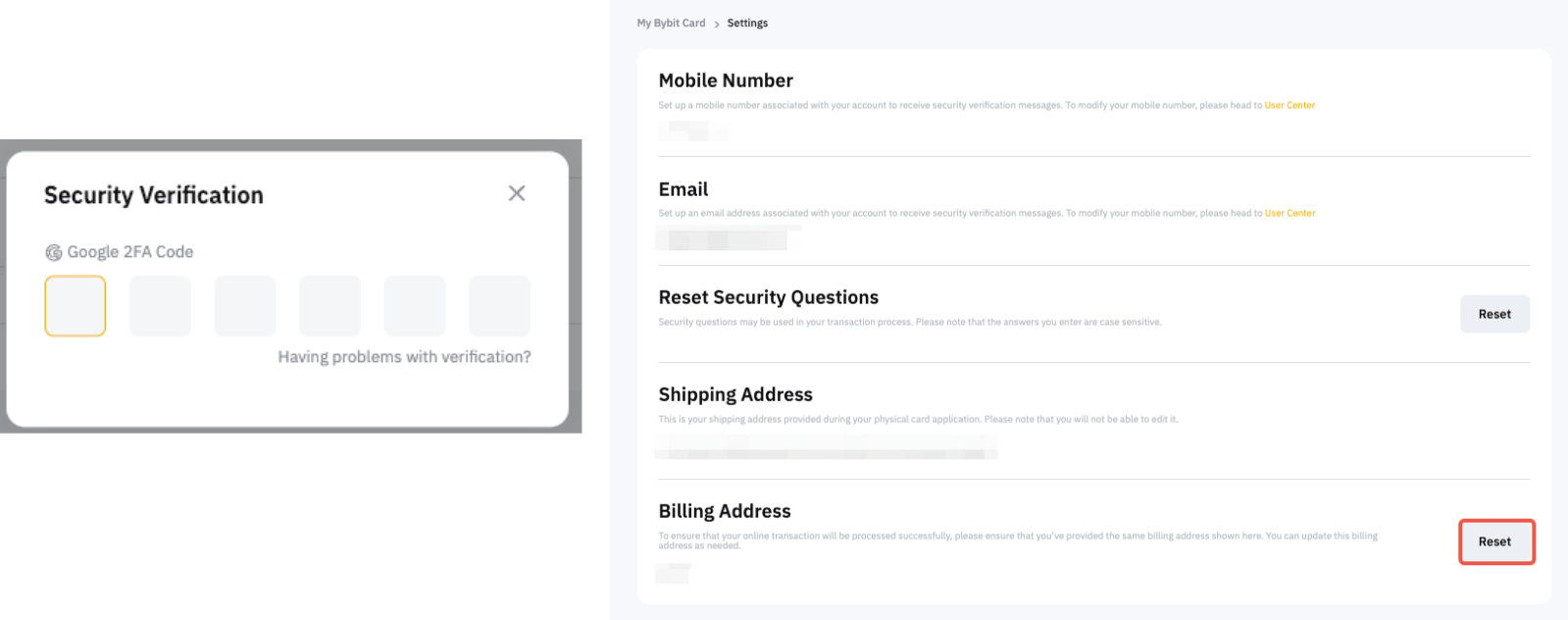
Step 2: After verifying your account with 2FA, click on Settings under Reset Security Questions.
Step 3: Select three (3) security questions and key in the answers, then click on Submit and enter the Google Authenticator code to confirm your action. Please note that the answers you enter are case-sensitive.
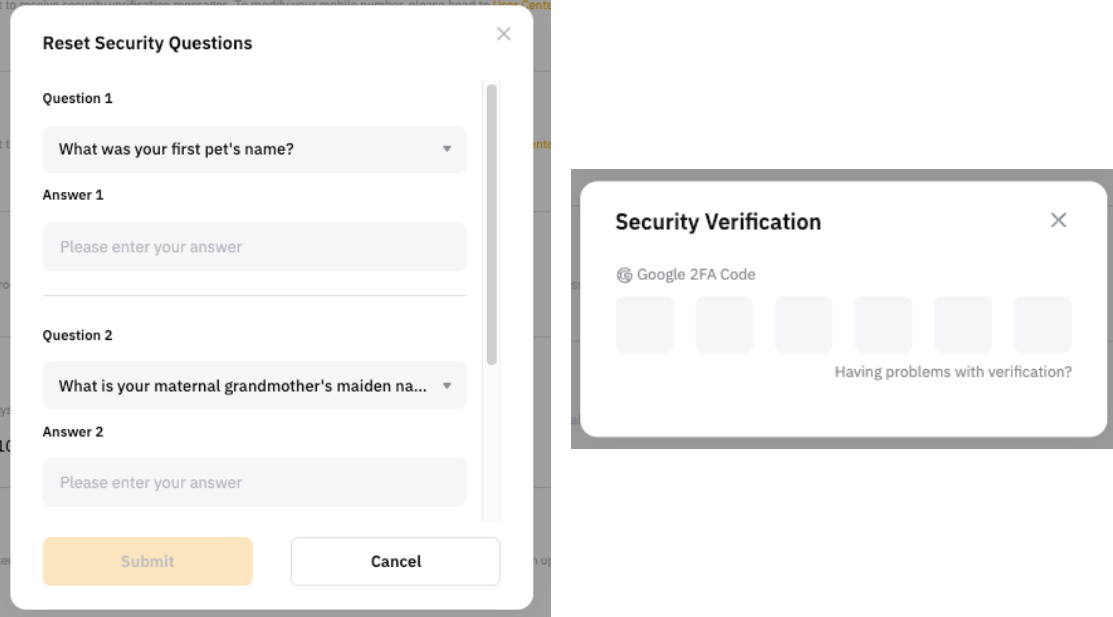
Congratulations! You have successfully updated your credential questions.

How to change my Bybit Card billing address?
Step 1: Go to the My Bybit Card page and click on Settings.
Step 2: After verifying your account with 2FA, click on Reset under Billing Address.
Step 3: Fill up your updated billing address, then click on Submit and enter the Google Authenticator code to confirm your action.
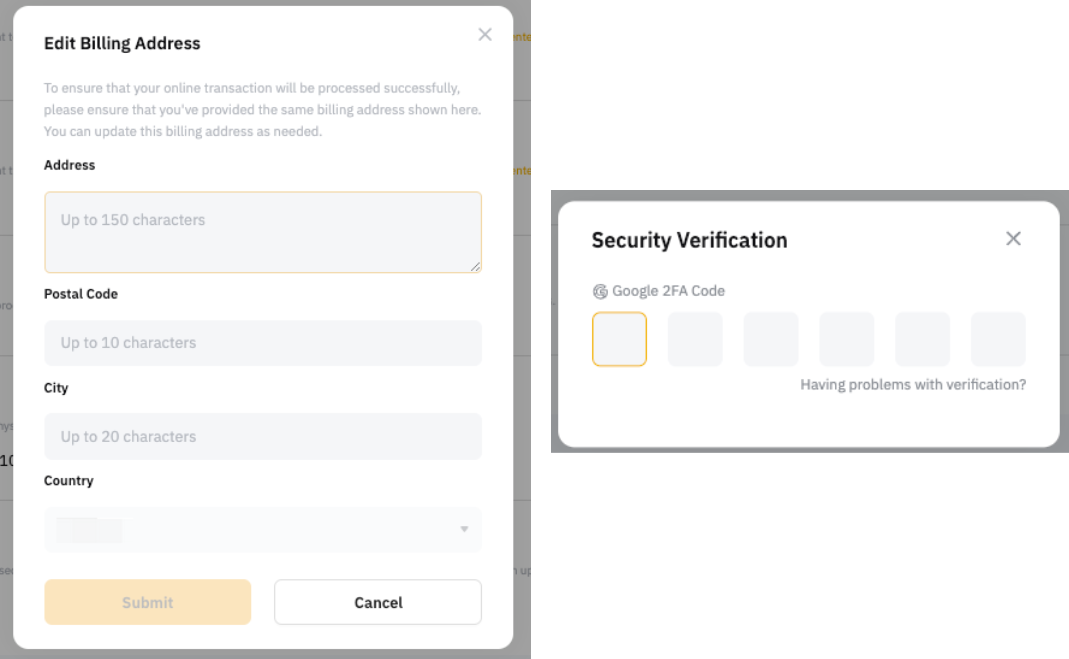
Note: To ensure that your online transactions are processed successfully, please verify that you've provided the same billing address on the payment page as the one shown in your Bybit Card billing address page. You can update this billing address as needed.
Congratulations! You have successfully updated your billing address.