
Für die Bybit Card Kartenverwaltung
Bybit Card anzeigen
Bybit Card sperren/entsperren
CVV entsperren
Online-Transaktionen und Geldautomatenabhebungen aktivieren oder deaktivieren
PIN der Bybit Card zurücksetzen
Bybit Card ersetzen
Bybit Card kündigen
Apple Pay/Google Pay/Samsung Pay hinzufügen
Design auf der Bybit Card anpassen
Für Bybit Card Einstellungen
Sicherheitsfragen zur Bybit Card
Rechnungsadresse für die Bybit Card einrichten
Für die Bybit Card Kartenverwaltung
Wie kann ich die Bybit Card Kartendetails anzeigen?
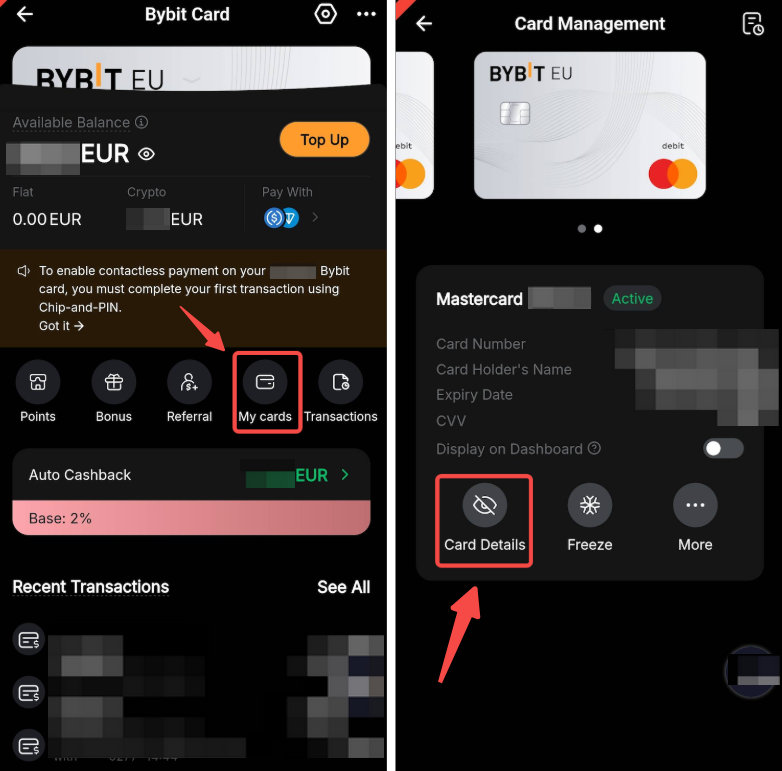
Tippe auf der Bybit Card Kartenseite auf Meine Karte. Dann auf Kartendetails und gib die 2FA ein, um die Karte anzuzeigen. Bei mehreren Karten wische nach links oder rechts, um zu wechseln.
Wie kann ich meine Bybit Card sperren/entsperren?
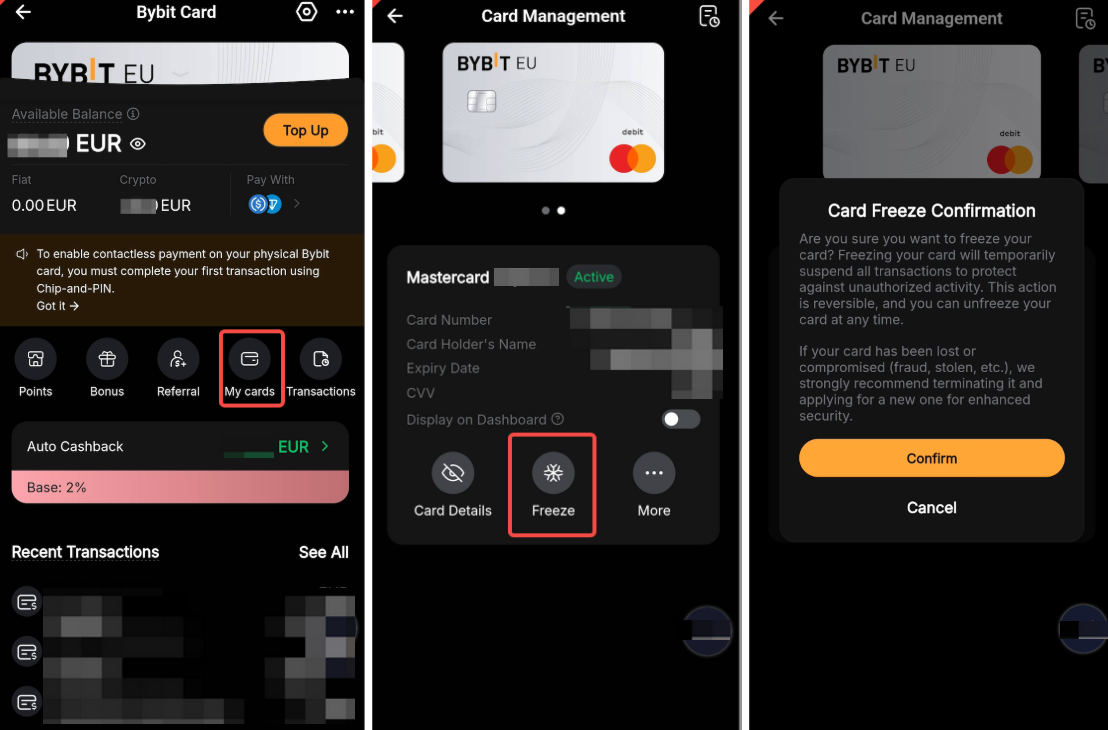
Tippe auf der Bybit Card Kartenseite auf Meine Karte. Wähle deine bevorzugte Karte aus und tippe auf Einfrieren und Bestätigen, um deine Bybit Card vorübergehend zu deaktivieren. Dadurch werden alle Transaktionen gestoppt und deine Karte vor unbefugten Aktivitäten geschützt.
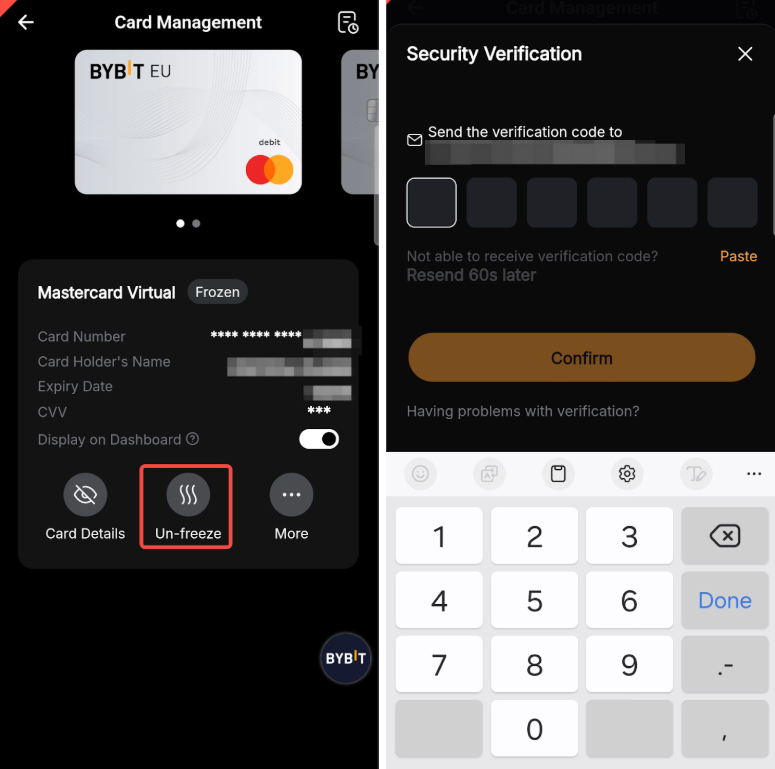
Um die Karte wieder zu aktivieren, tippe auf Aufheben und schließe die Sicherheitsprüfung ab.
Wie entsperre ich CVV?
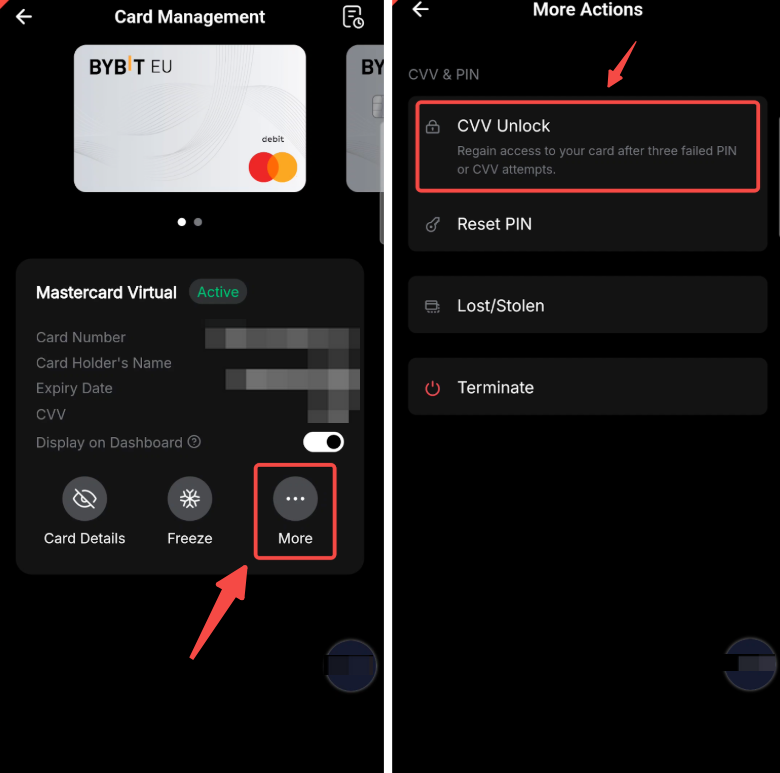
Wenn du die Anzahl der Versuche zur Eingabe deiner CVV-Nummer überschritten hast, wird deine Karte gesperrt. Du kannst deine CVV-Nummer auf der Seite „Kartenverwaltung” entsperren. Tippe auf Mehr, wähle CVV entsperren und bestätige die Sicherheitsprüfung.
Wie kann ich Online-Transaktionen und Bargeldabhebungen am Geldautomaten aktivieren oder deaktivieren?
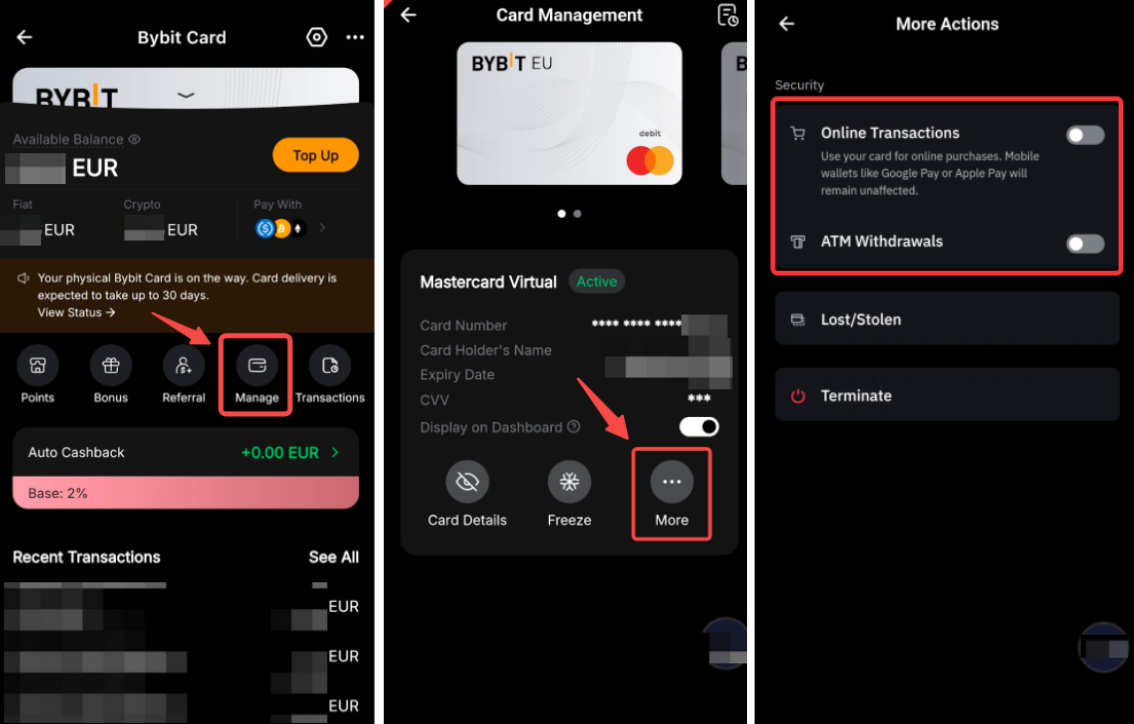
Über die Einstellungen Weitere können Nutzer Online-Transaktionen und Geldautomatenabhebungen verwalten.
Durch Deaktivierung dieser Optionen werden Transaktionen blockiert, wodurch eine zusätzliche Sicherheitsebene für die Karte geschaffen wird. Aus Sicherheitsgründen ist bei der Aktivierung dieser Optionen eine 2FA-Verifizierung erforderlich, während bei deren Deaktivierung keine 2FA-Verifizierung erforderlich ist.
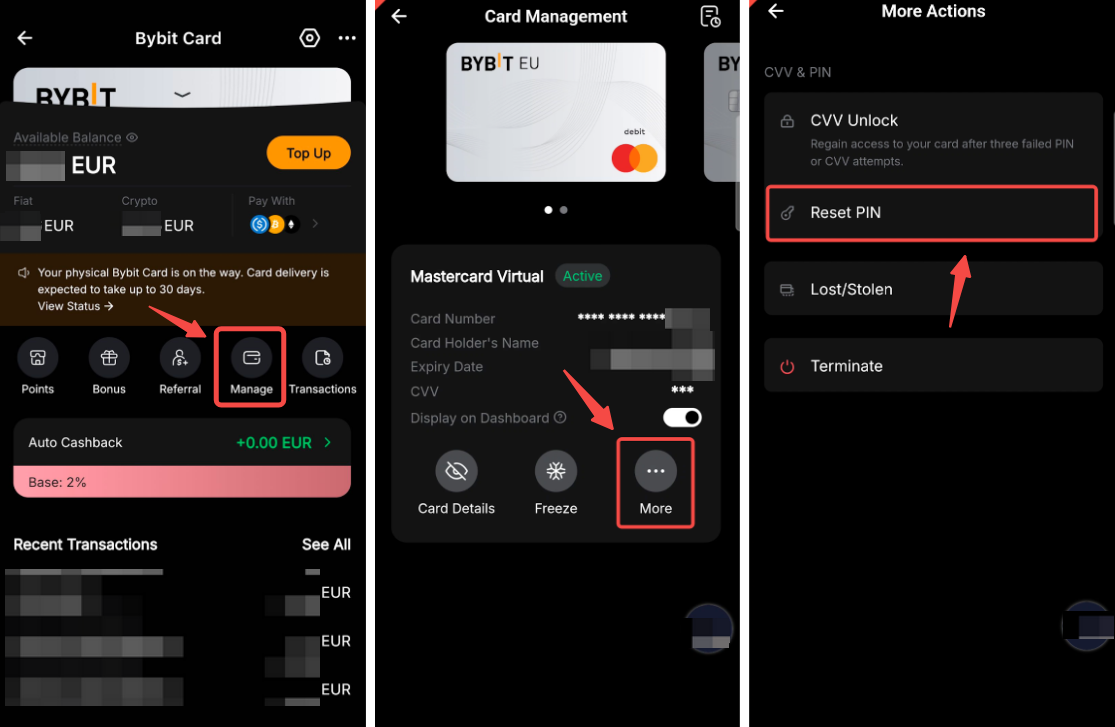
Wie setze ich die PIN meiner Bybit Card zurück?
Wichtig: Nach dem Zurücksetzen musst du zuerst eine Transaktion am Geldautomaten durchführen (z. B. Kontostand abfragen) und anschließend bei einem Händler eine Chip-und-PIN-Transaktion mit der neuen PIN. Danach kannst du die Karte kontaktlos oder mit der neuen PIN nutzen.
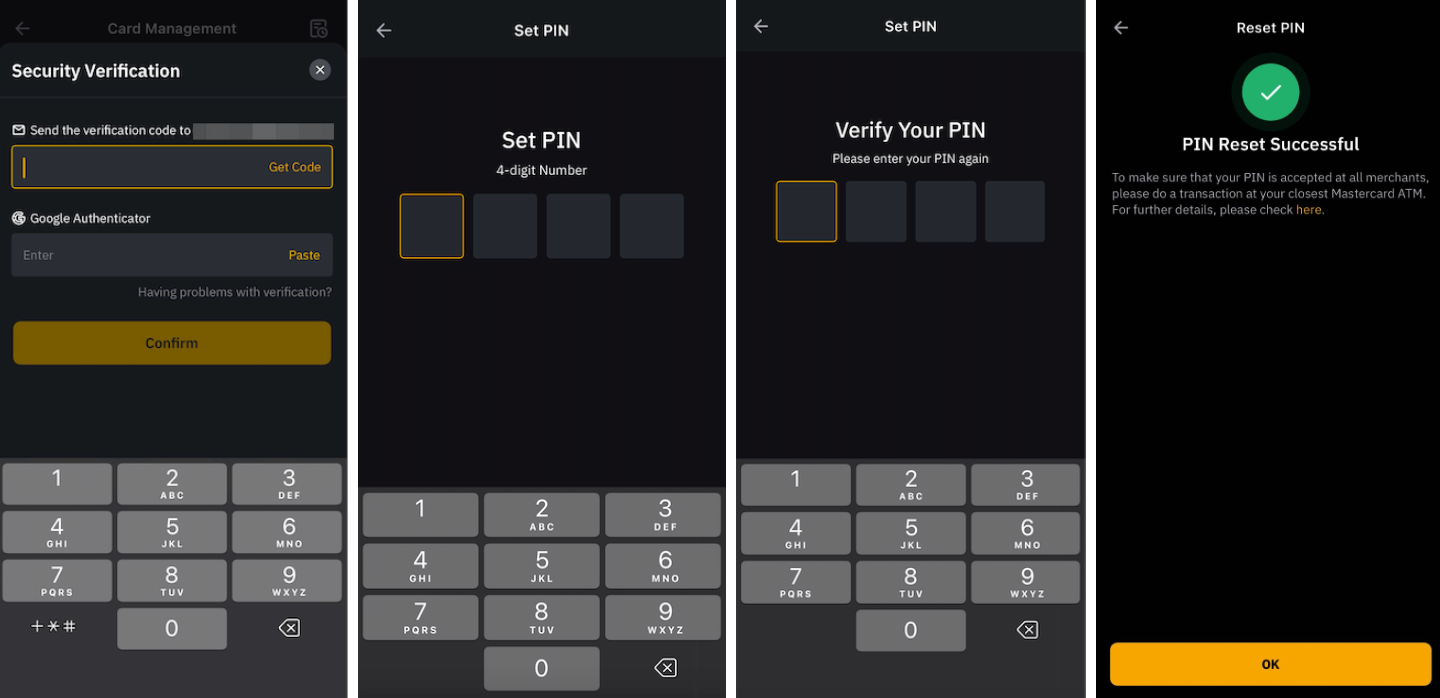
Tippe auf Karte in der Kartenverwaltung. Unter Karte tippe auf Mehr → PIN zurücksetzen. Schließe die Sicherheitsprüfung ab, gib die neue PIN ein und bestätige sie mit der zweiten Verifizierung.
Nach Abschluss der Sicherheitsüberprüfung kannst du eine neue PIN-Nummer eingeben und die zweite Überprüfung mit deiner neuen PIN abschließen.
Anmerkungen:
— Beim Zurücksetzen Ihrer PIN müssen Benutzer einen 4-stelligen Code eingeben.
— Jede Karte hat ihre eigene PIN, was bedeutet, dass eine Änderung der PIN der physischen Karte die PIN der virtuellen Karte nicht ändert. Um die PIN Ihrer physischen Karte zurückzusetzen, folgen Sie einfach den oben stehenden Anweisungen.
Wie ersetze ich meine physische Bybit-Karte?
Tippe auf der Seite Bybit-Kartenverwaltung auf Karte. Tippe dann unter Physische Karte auf Mehr und wähle Karte ersetzen. Auf der Website gehst du bitte zur Seite Kartenverwaltung und klickst auf Karte ersetzen.
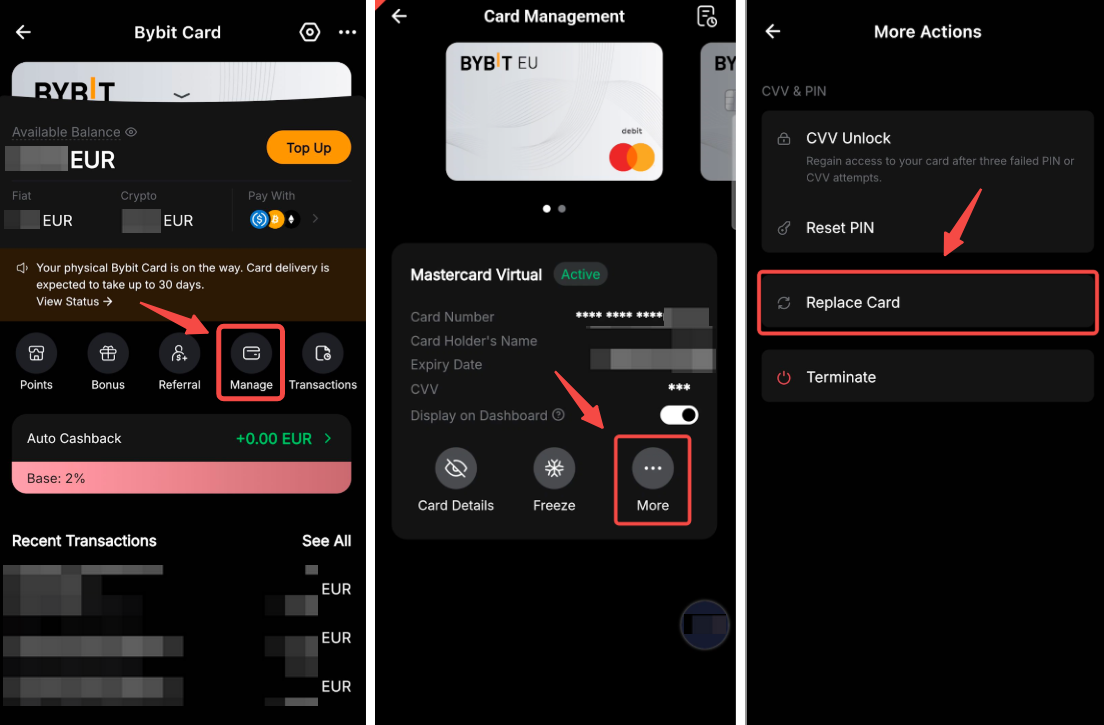
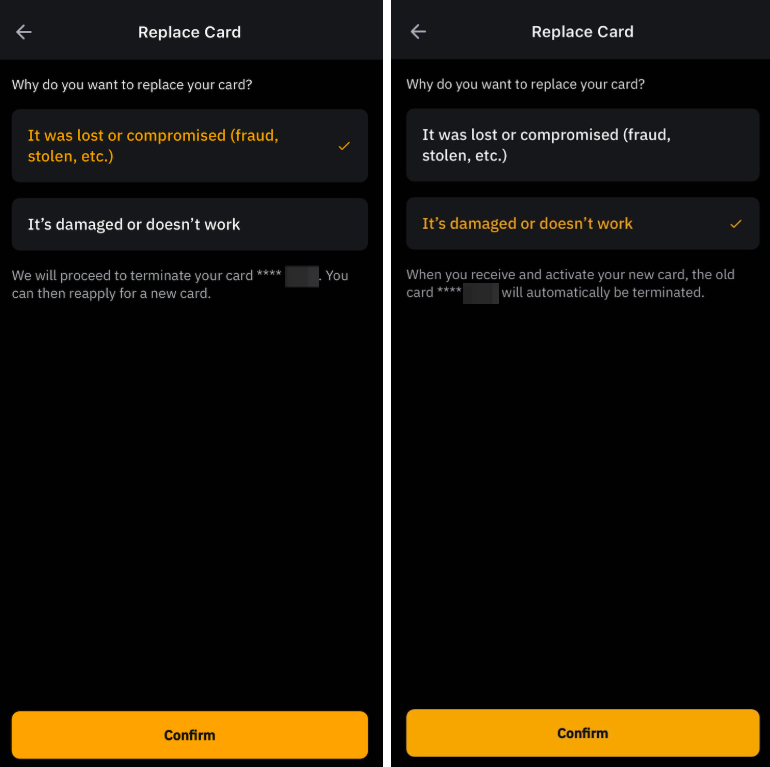
Wähle dann den Grund aus, warum du deine physische Karte ersetzen möchtest:
- Es ist verloren gegangen oder kompromittiert worden (Betrug, Diebstahl usw.)
Wähle diese Option, wenn deine Bybit Card kompromittiert wurde. Nach Bestätigung der Option wird deine physische Karte gesperrt und du kannst eine neue Karte beantragen.
- Es ist beschädigt oder funktioniert nicht
Wähle diese Option, wenn du deine physische Karte noch besitzt, sie aber kaputt oder beschädigt ist. Nach Bestätigung der Option stellen wir eine neue physische Karte an deine Lieferadresse aus. Nach Erhalt und Aktivierung deiner neuen Karte wird die alte Karte automatisch gekündigt.
Wie kündige ich meine Bybit Card?
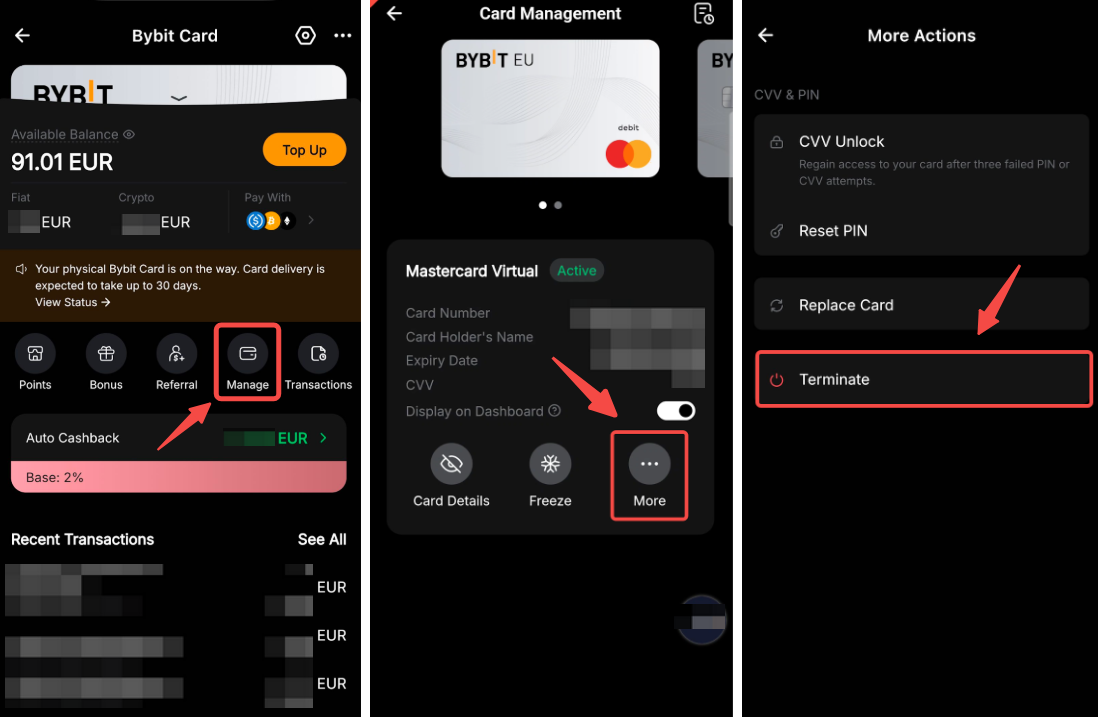
Tippe auf der Seite Bybit-Kartenverwaltung auf Karte. Tippe anschließend auf Mehr und wähle Beenden.
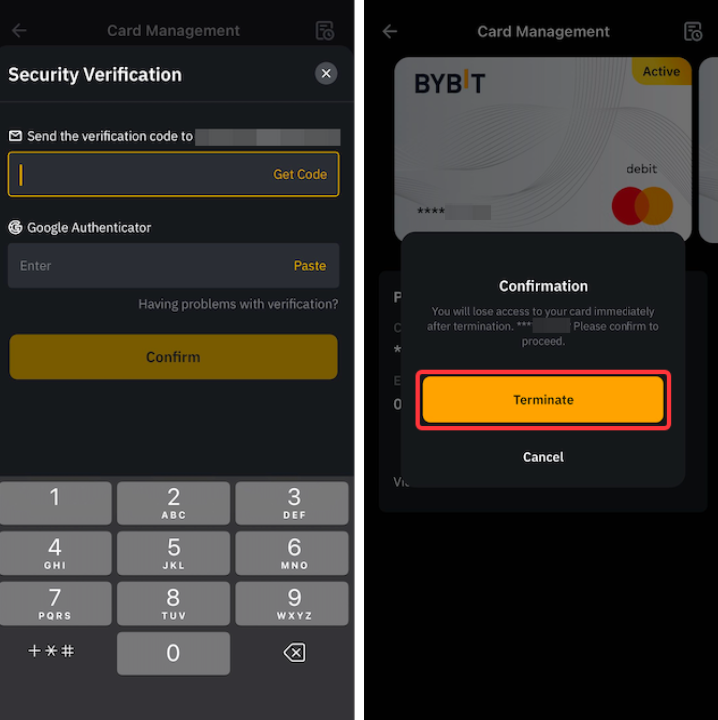
Schließe die Sicherheitsüberprüfung ab und tippe auf Beenden, wenn du fortfahren möchtest.
Wie füge ich meine Bybit Card zu Apple Pay, Google Pay oder Samsung Pay hinzu?
Das Hinzufügen Ihrer Bybit Card zu digitalen Geldbörsen wie Apple Pay, Google Pay und Samsung Pay wird von Bybit Card unterstützt. Bitte beachten Sie, dass das Hinzufügen Ihrer Karte zu Apple Pay, Google Pay und Samsung Pay nur über Apple Pay, Google Pay und Samsung Pay unterstützt wird.
Google Pay
Du kannst deine Karte wie jede andere Karte direkt in Google Pay oder über die Google-Pay-App hinzufügen.
Hinweise:
– Google Pay wird auf iOS nicht unterstützt.
— Google Pay kann nicht über die Website hinzugefügt werden.
— Google Pay ist für Nutzer aus der Schweiz, Estland und Norwegen nicht verfügbar.
Apple Pay
Das Hinzufügen deiner Bybit Card zu Apple Pay ist auf iOS-Geräten und der Apple Watch möglich. Bevor du fortfährst, stelle bitte sicher, dass du
(i) eine Bybit Card verwendest,
(ii) dich in einem von Apple Pay unterstütztes Land oder Region befindest,
(iii) die neueste Version von iOS, watchOS, macOS, oder visionOS nutzt und
(iv) Face-ID, Optic ID oder ein Passcode auf deinem Gerät eingerichtet hast.
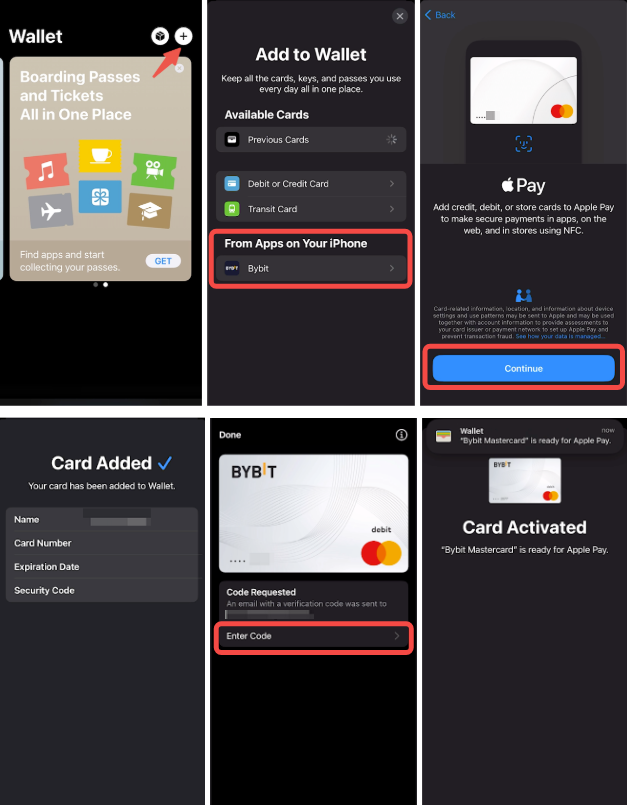
Um deine Bybit Card zu Apple Pay hinzuzufügen, öffne auf deinem iOS-Gerät Wallet oder Watch und tippe auf Karte hinzufügen. Folge anschließend den Anweisungen, gib deine Bybit-Card-Daten ein und schließe die Sicherheitsüberprüfung ab.
Hinweise:
— Apple Pay wird auf Android nicht unterstützt.
— Apple Pay kann nicht über die Website hinzugefügt werden.
— Du kannst den Transaktionsverlauf sowohl im Apple Wallet als auch im Transaktionsverlauf deiner Bybit Card einsehen.
— Das Häkchen mit Fertig bedeutet, dass das Apple-Gerät die Zahlungsdetails an das Terminal übermittelt hat. Wird eine Zahlung abgelehnt, kann dies durch Bybit EU oder Mastercard erfolgen.
— Wenn ein Gerät als verloren/gestohlen gemeldet wird, werden alle Karten im Apple Wallet dieses Geräts gesperrt. Dieselbe Karte auf einem anderen Gerät ist davon nicht betroffen.
Wie kann ich das Design auf einer Bybit Card anpassen?
Wählen Sie Ihre virtuelle Karte aus, und Sie werden zur Kartenverwaltungsseite weitergeleitet. Tippen Sie auf Mehr → Kartendesign, um die Kartendesign-Galerie anzuzeigen. Stöbern Sie durch die Auswahl, wählen Sie Ihr bevorzugtes Design und klicken Sie auf Festlegen.
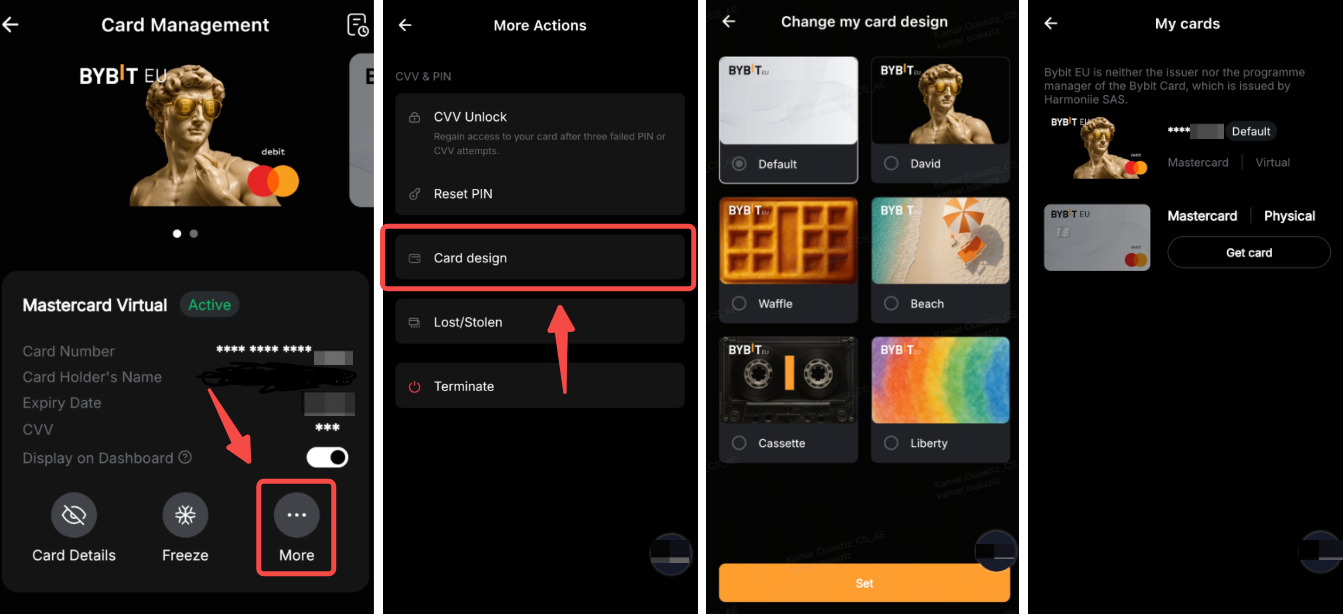
Das ausgewählte Design wird sofort auf Ihre virtuelle Karte angewendet und auch in Ihrer Apple Pay- oder Google Pay-Wallet angezeigt.
Für Bybit Card Einstellungen
Wie setze ich die Sicherheitsfragen der Bybit Card zurück?
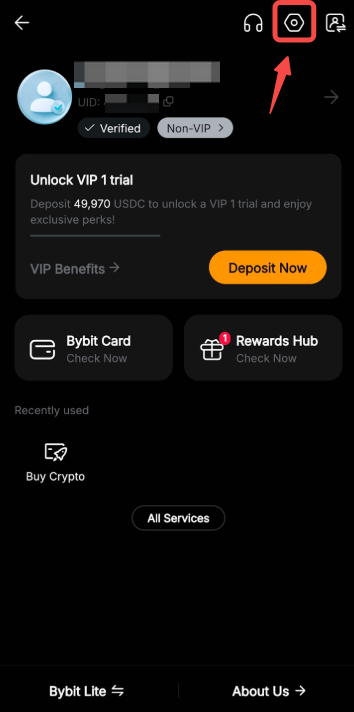
Schritt 1: Gehe zu Bybit Card, tippe auf die drei Punkte und anschließend auf Einstellungen.

Schritt 2: Nachdem du dein Konto mit 2FA verifiziert hast, tippe unter Anmeldefragen auf Einstellungen.
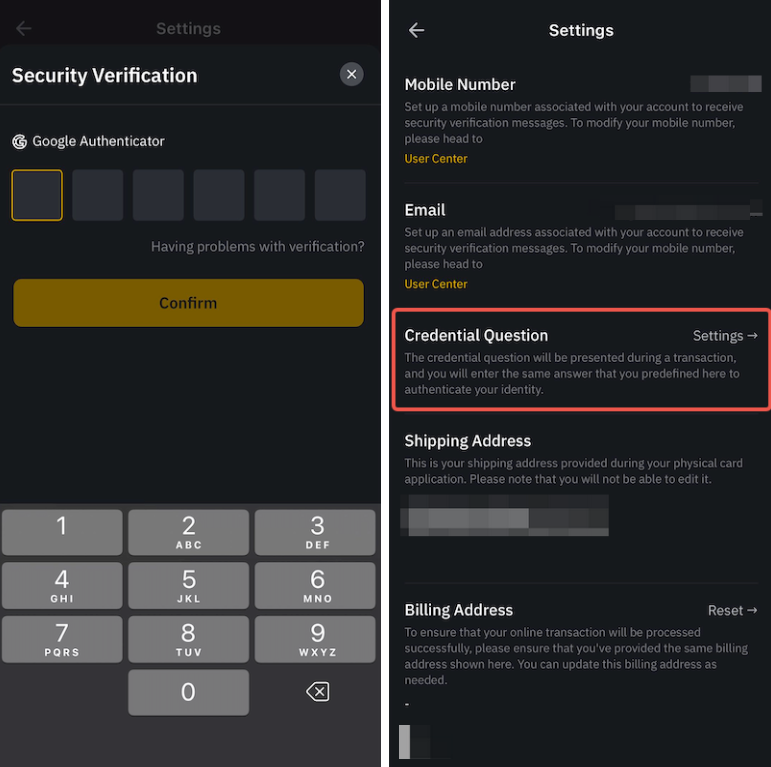
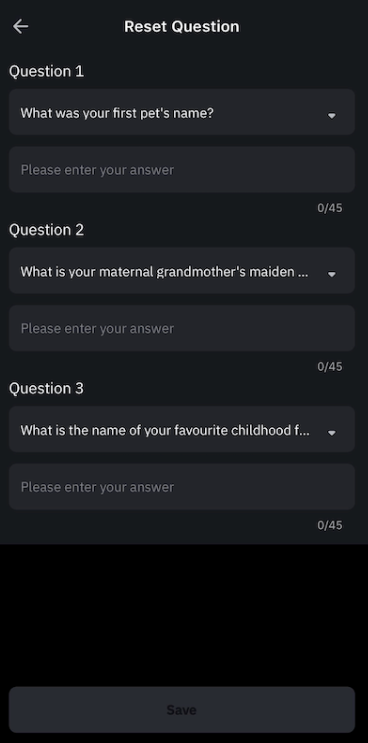
Schritt 3: Wähle drei (3) Sicherheitsfragen aus und gib die Antworten ein. Tippe anschließend auf Senden und gib den Google-Authenticator-Code ein, um die Aktion zu bestätigen. Bitte beachte, dass bei den Antworten zwischen Groß- und Kleinschreibung unterschieden wird.
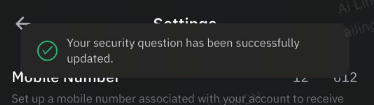
Glückwunsch! Du hast deine Sicherheitsfragen erfolgreich aktualisiert.
Wie ändere ich die Rechnungsadresse meiner Bybit Card ?
Schritt 1: Gehe zu Bybit Card, tippe auf die drei Punkte und anschließend auf Einstellungen.
Schritt 2: Nachdem du dein Konto mit 2FA verifiziert hast, tippe unter Rechnungsadresse auf Zurücksetzen.
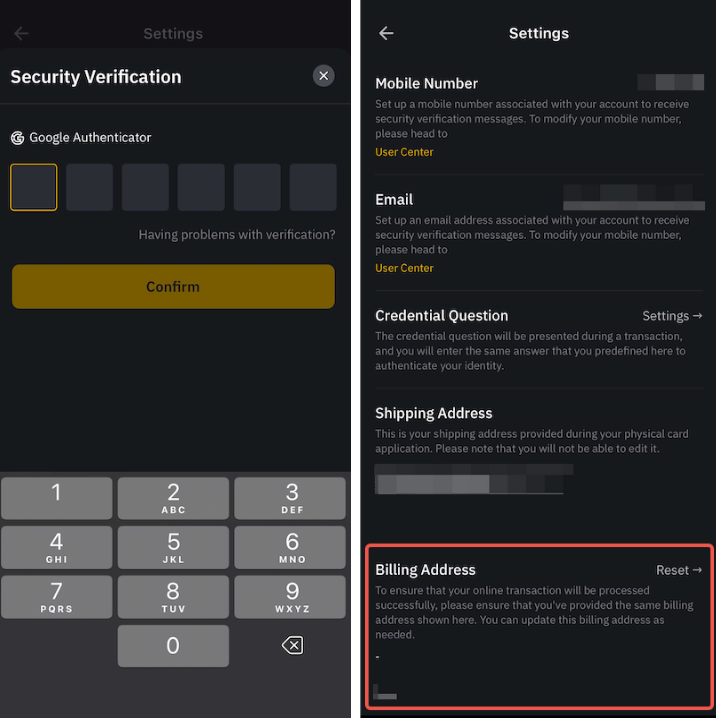
Schritt 3: Gib deine aktualisierte Rechnungsadresse ein, tippe auf Senden und gib den Google-Authenticator-Code ein, um die Aktion zu bestätigen.
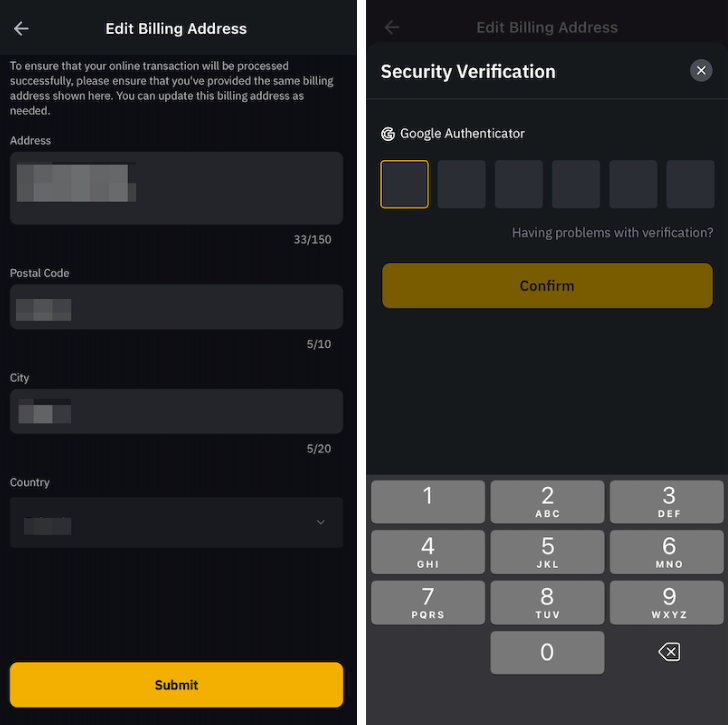
Hinweis: Um sicherzustellen, dass Ihre Online-Transaktionen erfolgreich verarbeitet werden, überprüfen Sie bitte, ob Sie auf der Zahlungsseite dieselbe Rechnungsadresse angegeben haben wie auf Ihrer Bybit Card -Rechnungsadressenseite. Sie können diese Rechnungsadresse bei Bedarf aktualisieren.
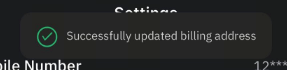
Glückwunsch! Du hast deine Rechnungsadresse erfolgreich aktualisiert.
Für die Sicherheit der Bybit Card
Wie aktiviere ich die biometrische Verifizierung zur Authentifizierung meiner Bybit-Card-Transaktionen?
Schritt 1: Tippe auf das Profilsymbol oben links auf der Startseite der Bybit-EU-App und wähle Sicherheit.
Schritt 2: Wähle App-Sperre → Face ID oder Fingerabdruckerkennung, um die biometrische Verifizierung zu aktivieren.
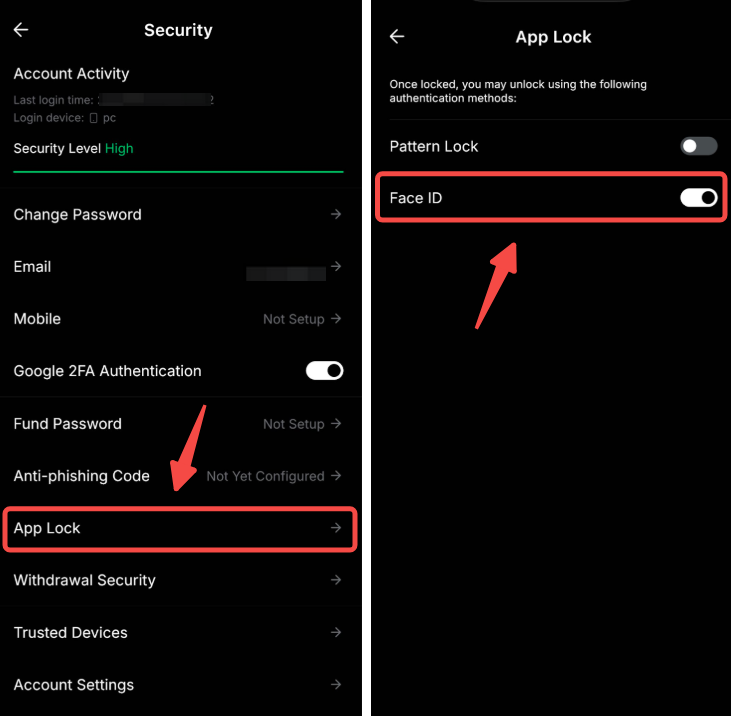
Nachdem du die biometrische Verifizierung in der Bybit-EU-App aktiviert hast, überprüfe bitte in den Einstellungen deines Geräts, ob Push-Benachrichtigungen für die Bybit-EU-App erlaubt sind.